How to config Ecsow dialer to use illyvoip?
This guide will walk you through creating and configuring illyvoip on Ecsow dialer.
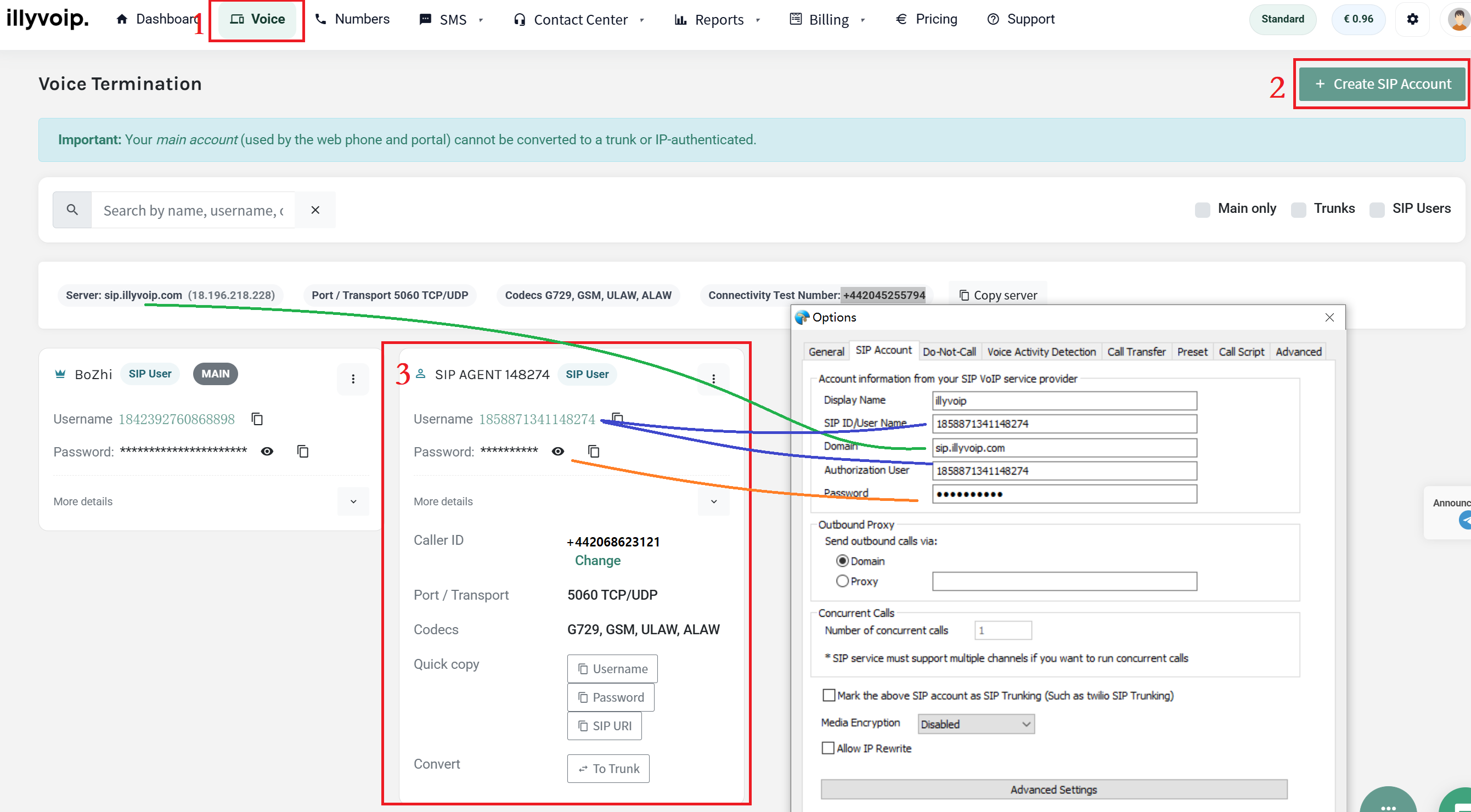
config illyvoip on Ecsow dialer
- Log in to your illyvoip dashboard.
- Click on the Voice tab in the top navigation bar to access the Voice Termination management page.
- On the Voice Termination page, click the + Create SIP Account button in the top-right corner.
- Follow the on-screen prompts to set up a new SIP User account (note: your main account cannot be converted to a trunk/IP-authenticated account).
After creating your SIP account, locate it in the list of SIP Users. You will need the following details for configuration:
- SIP ID/Username: Your unique SIP username (e.g.,
1858871341148274)
- Password: Your account password
- Domain/Server:
sip.illyvoip.com
Open your Ecsow dialer and navigate to the SIP account setup screen. Enter the credentials as follows:
- Display Name: Enter a name for your account (e.g.,
illyvoip).
- SIP ID/Username: Paste your SIP username.
- Domain: Enter
sip.illyvoip.com.
- Authorization User: Paste your SIP username again (matches the SIP ID).
- Password: Paste your account password.
- Save the configuration in your Ecsow dialer.
- Use the connectivity test number (
2045255794) provided on the illyvoip Voice page to test your connection. Please to configure your Country code 44 if you want to test the number (2045255794) .
- Confirm that you can make and receive calls successfully.