FAQ Overview
System Requirements
What are the system requirements for running Ecsow Dialer / Voice Broadcast?
Auto Dialer -- Single-line version.
OS Requirement: Windows11/10/8/7, Windows server2022/2015/2008.
VoIP Service Requirement: Desktop of Skype or VoIP Subscription(Such as SkypeConnect, Vonage, CallWithUs, CallCentric and so on) / IP PBX / SIP Trunk.
Bandwidth Requirement: 64KBps per line.
Predictive Dialer -- Multiple-line version.
OS Requirement: Windows11/10/8/7, Windows server2022/2015/2008.
VoIP Service Requirement: VoIP Subscription(Such as SkypeConnect, Vonage, CallWithUs, CallCentric and so on) / IP PBX / SIP Trunk.
Bandwidth Requirement: 64KBps per line.
Voice Broadcast -- Multiple-line version.
OS Requirement: Windows11/10/8/7, Windows server2022/2015/2008/2003.
VoIP Service Requirement: VoIP Subscription(Such as Anveo, Vonage, CallCentric and so on) / IP PBX / SIP Trunk. And more at https://www.ecsow.com/siptrunk.html
Bandwidth Requirement: 64KBps per line.
Remote Agent
OS Requirement: Windows11,10/8/7.
Bandwidth Requirement: 64KBps or more.
Author: eva
Last update: 2016-01-20 08:01
What VoIP service can I use?
It support all SIP based VoIP services ,Such as SkypeConnect, Vonage, CallWithUs, CallCentric, LocalPhone, ViaTalk, RingCentral and so on.
If you have IP PBX system (Such as Asterisk, Cisco, Talkswitch and more), you can work with it too.
If the call volume is large, you can use the SkypeConnect.
If the call volume is small, you can try the CallCentric, CallWithUs, RingCentral and so on.
Author: eva
Last update: 2016-01-20 08:24
Does the software have to be installed on each of our users' PCs?
For Auto Dialer -- Single line edition.
Yes, you need to install it on each of user's PCs.
For Predictive Dialer -- Multiple line edition.
It need to install Predictive Dialer on a separated computer. And the users need to install the Remote Agent for each of them.
Author: eva
Last update: 2016-01-20 08:19
Predictive Dialer » Introduction
Overview
The predictive dialer uses your computer to deliver personal calls or leave answering machine messages with the option of using your own voice or using a pre-recorded voice. It can skip busy lines, no answer lines, and disconnected lines automatically.
Predictive Dialer contains the following features:
- Broadcast pre-recorded message
- Transfer live-calls to your agents while mass broadcasting.It will increase the efficiency of your agents by automatically filtering out unproductive calls and only involving your agents when a live human is on the line.
- You can simply skip answering machine pick-ups or leave a message to the link according to the settings
- Put call into waiting queue if there is no agent available
Author: eva
Last update: 2016-01-13 10:21
Predictive Dialer » How to Setup
Predictive Dialer Setup
Ecsow Predictive Dialer offers the following key features:
VOIP Predictive Dialing–No need for physical phone lines, Dialogic board or voice modem. Calls are made through Internet VoIP.
Remote Agent–Agent can work at home or office. Calls are forwarded to agent’s computer over the internet or local area network.
Installing the Predictive Dialer on a Dialing Computer
Download Ecsow Predictive Dialer software and follow on-screen instructions to install Predictive Dialer on a computer.
Configuring the phone service
Ecsow software can use several phone services: VOIP phone service (such as SkypeConnect, Vonage, Callcentric, any SIP trunk provider, etc); a PBX system with SIP extensions (such as Cisco, Avaya, Asterisk, etc).
Click Ecsow menu Tools > Options > SIP Account tab to input your SIP account information.

It will show connected to the SIP service on Ecsow main window.

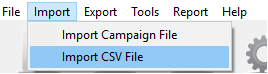
Import call list by click Ecsow menu Import > Import CSV File.
Click the menu Import > Improt CSV file
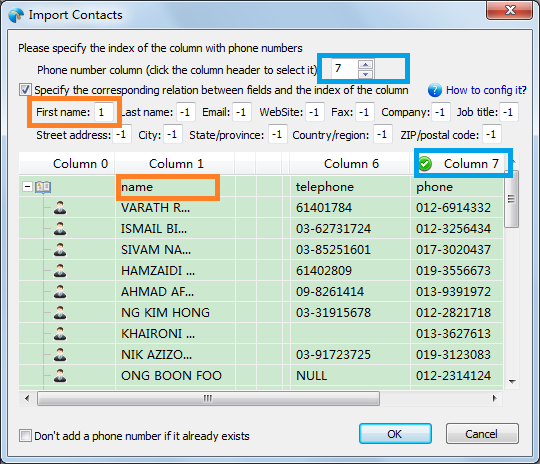
You will need to specify which of your columns from your call list will be placed on Predictive Dialer’s “Name” and “Phone Number” columns.
Click the Start Dialing button to start the predictive dialing.

Please note you need to specify 1 for US phone number, where 1 is the country code. You can set this at Ecsow menu Tools > Options > General tab.
Once a call is answered by a live human, the call is transferred to an available agent; on the agent’s computer, an alert window (screen popup) pops up, and the agent can talk to the client right away. The screen popup contains all the information about the client. Here is what the popup window will look like:

Author: eva
Last update: 2016-01-19 10:22
Predictive Dialer Agent Setup on same LAN Computer
For the agent to work on a computer other than the dialing computer, you need to download and install the Remote Agent program on another PC(it can be in the same office as the dialing computer or anywhere there is an internet connection).
After you have installed the Remote Agent software, run it and input the Agent account profile which you added on Predictive Dialer.

Notes: You need to add agent account at Ecsow Predictive Dialer before you config it on Remote Agent software.
Author: eva
Last update: 2016-01-19 10:23
Add Agent Account on Predictive Dialer
Please click the + button to add agent account on Ecsow Predictive Dialer. And click the "Apply Settings" button after you added the agent account.

Author: eva
Last update: 2016-01-19 10:38
Predictive Dialer Remote Agent Setup Guide (Port Mapping)
Setting up a remote agent's computer normally involves configuring your server's internet and firewall setting (Port Mapping).
The following are some key settings:
(Note: You'd better to contact your your ISP or company IT department to setup it.)
Make sure the Remote Agent software can access the Ecsow Predictive Dialer PC on a Local Area Network (LAN). A LAN is a set of computers connected to the same networking router. Once it is working from the LAN, then you know that the Ecsow Predictive Dialer is working and can be accessed from other computers at the same LAN.
The router setup. The router usually has two IP addresses. One IP address for internal access, referred to as Local Area Network (LAN) address. The other IP address is for outside access, referred to as Wide Area Network (WAN) address. The WAN IP address is used to connect to the outside internet. This is the address you need to know. If the Ecsow Predictive Dialer has running in the office and the office has a router for internet connection, in order to access the server computer from remote computer, you must know the WAN IP address of your router.
You can get LAN IP address and WAN IP address from your Internet Service Provider(ISP). Specifically, get the IP address you can use in order to access your router from outside.
You need to re-direct(Port Mapping) the router traffic for port 5061 (Ecsow Telephony Engineport) and port 5060 (Remote agent connecting port) to the server computer. You need to set it up for your router. Once set, any new connection to these two ports will be routed to the correct computer.
Open Remote Agent Settings and specify the WAN IP address on "Domain" field, which is the IP address you get in the previous step.
Author: eva
Last update: 2016-01-13 10:41
How To Use Ecsow Predictive Dialer
1, Installing the Predictive Dialer on a Dialing Computer
Download Ecsow Predictive Dialer software and follow on-screen instructions to install Predictive Dialer on a computer.
2, Configuring the phone service
Ecsow software can use several phone services: VOIP phone service (such as SkypeConnect, Vonage, Callcentric, any SIP trunk provider, etc); a PBX system with SIP extensions (such as Cisco, Avaya, Asterisk, etc).
Click Ecsow menu Tools > Options > SIP Account tab to input your SIP account information.
It will show connected to the SIP service on Ecsow main window.
3, Import call list by click Ecsow menu Import > Import CSV File.
Click the menu Import > Improt CSV file
You will need to specify which of your columns from your call list will be placed on Predictive Dialer’s “Name” and “Phone Number” columns.
4, Click the Start Dialing button to start the predictive dialing.
Please note you need to specify 1 for US phone number, where 1 is the country code. You can set this at Ecsow menu Tools > Options > General tab.
5, Auto distribute call to agent.
Once a call is answered by a live human, the call is transferred to an available agent; on the agent’s computer, an alert window (screen popup) pops up, and the agent can talk to the client right away. The screen popup contains all the information about the client. Here is what the popup window will look like:
Author: eva
Last update: 2016-01-19 10:38
How to setup voice activity detection
Click Ecsow menu Tools > Options > Voice Activity Detection tab as below.
 You can specify a message for Answering Machine lines. Also can specify a message for human answered lines.
If you want to play a message immediately when the line pickup, you can enable the play message immediately option.
Author: eva
Last update: 2016-01-11 05:10
How to setup Call Auto Distribution
It will auto distribute the call to the available agent by default. And it will put the call into waiting queue if there no agent is available.
You can change the settings as your need.

Author: eva
Last update: 2025-11-04 06:46
How to setup Call Transfer
You can setup call transfer feature at Ecsow menu Tools > Options > Call Transfer tab.

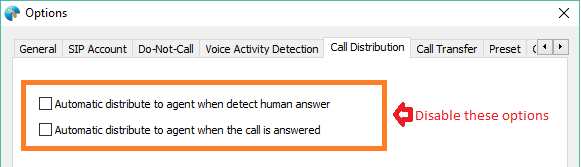
Notes: Please disable the “Automatic distribute to agent when detect human answer” and "Automatic distribute to agent when the call is answered" options at "Call Distribution" tab to make the call tranfer feature take effect.
Author: eva
Last update: 2018-08-06 11:33
How to setup Call Script
The call script will pops up along the right side of the contact information window. It's helpful when calling your prospects.

Author: eva
Last update: 2016-01-11 06:00
How to setup Do Not Call List
You can download the Do Not Call Lists from http://www.donotcall.gov.
Then specify the Do Not Call Lists file to Ecsow Dialer as below.

Author: eva
Last update: 2016-01-11 06:08
Preset Notes / Preset Call Disposition/ Preset Greeting Message
You can preset the notes/call dispostion/greeting message at Ecsow dialer Preset tab.

Author: eva
Last update: 2016-01-11 07:23
How to act the Predictive Dialer as the Voice Broadcast System?
It’s very simple to act the Predictive Dialer as the Voice Broadcast System.
Step 1, Disable the Call Distribution Settings as below image.
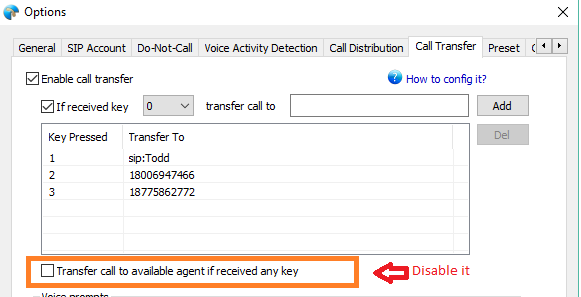
Step 2, Disable the “Transfer call to available agent if received any key” option as below image. And setup the phone number which you want to transfer call to it when callee pressed key.
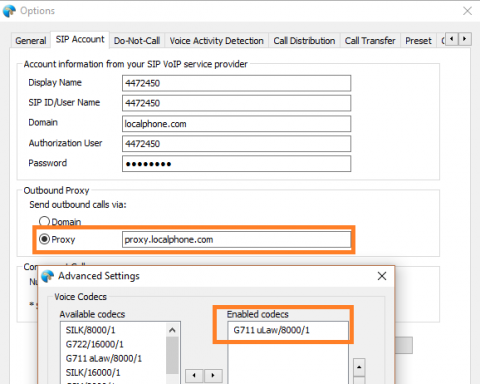
Step 3, Setup your VoIP account (We use localphone service as sample). You should setup it according to your VoIP account information.
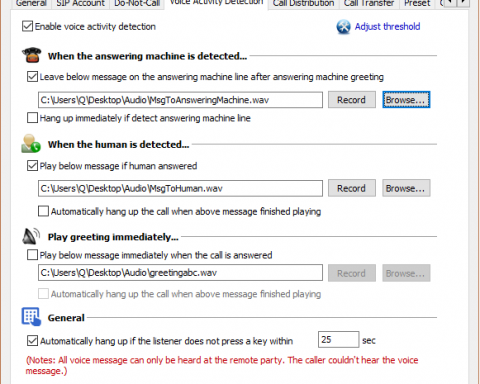
Step 4, On “Voice Activity Detection” option you can setup the voice greeting file which you want to play it on the call.
Step 5, Import your campaign csv (comma-separated) file to Ecsow, then press “Start dialing” to start.
(Notes: Please add the country code at Ecsow menu Tools > Options > General tab if the phone number still not include the country code.)
Author: eva
Last update: 2017-02-02 09:56
Predictive Dialer » Import and Export List
Importing from a CSV file
Before you import a call list, you will need a .csv file. If you don't know how to create the CSV (Comma delimited) file, please see How to export Excel data to CSV files in Excel?
1, Open Predictive Dialer.
2, Click the menu Import > Improt CSV file
3, You will need to specify which of your columns from your call list will be placed on Predictive Dialer's "Name" and "Phone Number" columns.
Author: eva
Last update: 2016-01-18 07:13
Exporting to a CSV file
Once you finish your campaign, you can export your report to use in another program. To do this, you will need to:
1, Click Ecsow menu Export > Export CSV File
2, Choose the path and file name for the export and click "Save".
Author: eva
Last update: 2016-01-07 08:04
Auto Dialer / Voice Broadcast » Introduction
Overview
Ecsow Auto Dialer is a software based solution. You do not need any special hardware. Basically, all you need is a computer with Skype installed or other VoIP Services (Such as SkypeConnect, Vonage, CallCentric and so on).
The auto dialer uses your computer to deliver personal calls or leave answering machine messages with the option of using your own voice or using a pre-recorded voice. It can skip busy lines, no answer lines, and disconnected lines automatically.
Auto Dialer contains the following features:
- Broadcast pre-recorded message
- Transfer live-calls to your agents while mass broadcasting.It will increase the efficiency of your agents by automatically filtering out unproductive calls and only involving your agents when a live human is on the line.
- You can simply skip answering machine pick-ups or leave a message to the link according to the settings
Author: eva
Last update: 2016-01-18 06:48
Auto Dialer / Voice Broadcast » How to Setup
How To Use Ecsow Auto Dialer
1, Installing the Auto Dialer on a Dialing Computer
Download Ecsow Auto Dialer software and follow on-screen instructions to install Auto Dialer on a computer.
2, Configuring the phone service
Ecsow software can use several phone services: VOIP phone service (such as SkypeConnect, Vonage, Callcentric, any SIP trunk provider, etc); a PBX system with SIP extensions (such as Cisco, Avaya, Asterisk, etc). (Note: Single line version also support Desktop of Skype.)
Click Ecsow menu Tools > Options > SIP Account tab to input your SIP account information.
It will show connected to the SIP service on Ecsow main window.
3, Import call list by click Ecsow menu Import > Import CSV File.
Click the menu Import > Improt CSV file
You will need to specify which of your columns from your call list will be placed on Predictive Dialer’s “Name” and “Phone Number” columns.
4, Click the Start Dialing button to start the auto dialing.
Please note you need to specify 1 for US phone number, where 1 is the country code. You can set this at Ecsow menu Tools > Options > General tab.
Author: eva
Last update: 2016-01-19 10:42
How to setup voice activity detection
Click Ecsow menu Tools > Options > Voice Activity Detection tab as below.
You can specify a message for Answering Machine lines. Also can specify a message for human answered lines.
If you want to play a message immediately when the line pickup, you can enable the play message immediately option.
Author: eva
Last update: 2016-01-15 05:23
How to setup Call Transfer
You can setup call transfer feature at Ecsow menu Tools > Options > Call Transfer tab.
Notes: Please disable the “Automatic distribute to agent when detect human answer” and "Automatic distribute to agent when the call is answered" options at "Call Distribution" tab to make the call tranfer feature take effect.
Author: eva
Last update: 2018-08-06 12:07
How to setup Call Script
The call script will pops up along the right side of the contact information window. It's helpful when calling your prospects.
Author: eva
Last update: 2016-01-15 05:28
How to setup Do Not Call List
You can download the Do Not Call Lists from http://www.donotcall.gov.
Then specify the Do Not Call Lists file to Ecsow Dialer as below.
Author: eva
Last update: 2016-01-15 05:28
Preset Notes / Preset Call Disposition/ Preset Greeting Message
You can preset the notes/call dispostion/greeting message at Ecsow dialer Preset tab.
Author: eva
Last update: 2016-01-15 05:28
Where to set up country code/ region code in Ecsow Auto Dialer?
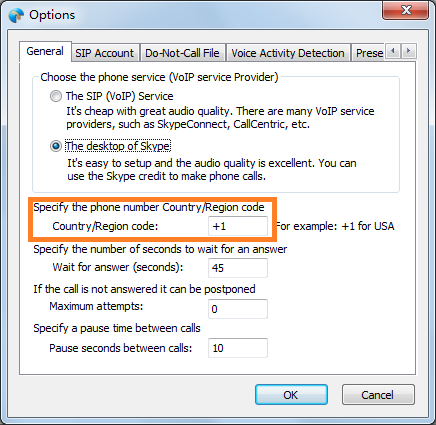
Please set it from the 'General' tab under Ecsow Skype Dialer Options. (e.g.: U.S. country code is 1, you need to specify +1 for a U.S. phone number if you use the Skype as the phone service provider. If you use the SIP(VoIP) service, you need to specify 1 for a U.S. phone number)
Author: eva
Last update: 2016-01-19 10:44
What can an agent do when a call is connected?
The agent can press 'Play Msg' button to play a pre-recorded audio message.
The agent can press 'Msg Drop' button to drop a pre-recorded audio message to the line and dial next one.
The agent can press 'Start Rec' button to record the phone conversation. (Recording can also be forced by system settings)
The agent can enter call notes, edit call information.
The agent can schedule a callback.
The agent can add the phone to Do Not Call list.
Author: eva
Last update: 2016-01-19 10:45
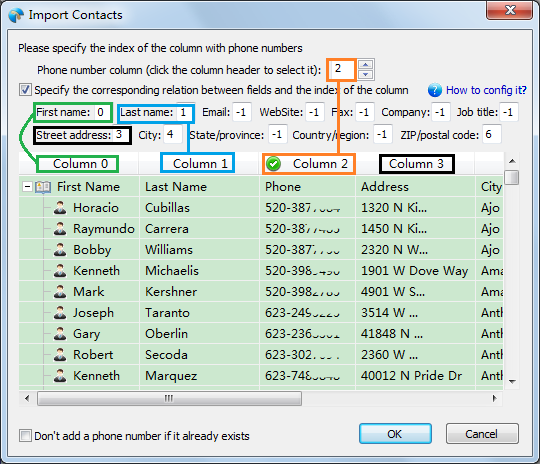
How to specify the corresponding relation when I import the CSV file?
Please specify the column index when you import the CSV file as below. You can click the index of column header to specify the phone number column. The other fields should manually input the index of the column to specify the corresponding relation.
Author: eva
Last update: 2016-01-19 10:46
How to act the Auto Dialer (Multi-line) as the Voice Broadcast System?
It’s very simple to act the Auto Dialer as the Voice Broadcast System.
Step 1, Disable the Call Distribution Settings as below image.
Step 2, Disable the “Transfer call to available agent if received any key” option as below image. And setup the phone number which you want to transfer call to it when callee pressed key.
Step 3, Setup your VoIP account (We use localphone service as sample). You should setup it according to your VoIP account information.
Step 4, On “Voice Activity Detection” option you can setup the voice greeting file which you want to play it on the call.
Step 5, Import your campaign csv (comma-separated) file to Ecsow, then press “Start dialing” to start.
(Notes: Please add the country code at Ecsow menu Tools > Options > General tab if the phone number still not include the country code.)
Author: eva
Last update: 2017-02-02 10:06
How to use the desktop of Skype to work with Ecsow dialer?
Access deniedAuthor: eva
Last update: 2026-11-11 08:09
I could not hear the sound of the call
Access deniedAuthor: eva
Last update: 2026-11-11 08:08
Auto Dialer / Voice Broadcast » Import and Export List
Exporting to a CSV file
Once you finish your campaign, you can export your report to use in another program. To do this, you will need to:
1, Click Ecsow menu Export > Export CSV File
2, Choose the path and file name for the export and click "Save".
Author: eva
Last update: 2016-01-15 05:30
Importing from a CSV file
Before you import a call list, you will need a .csv file. If you don't know how to create the CSV (Comma delimited) file, please see How to export Excel data to CSV files in Excel?
1, Open Auto Dialer.
2, Click the menu Import > Improt CSV file
3, You will need to specify which of your columns from your call list will be placed on Predictive Dialer's "Name" and "Phone Number" columns.
Author: eva
Last update: 2016-01-18 07:09
Use SIP Trunk / VoIP Phone Service
What is VoIP Service Provider?
VoIP stands for "Voice over Internet Protocol", which is a technology that allows you to make phone calls using your Internet connection instead of your regular phone service. The only requirement for this technology is a high speed Internet access.
To start your broadcast campaign with Auto Dialer you need to have an account credentials for a VoIP service provider.
Author: eva
Last update: 2016-01-18 07:32
How to config SkypeConnect at Ecsow Dialer?
Click here to see what is Skype Connect™ and how does it work?
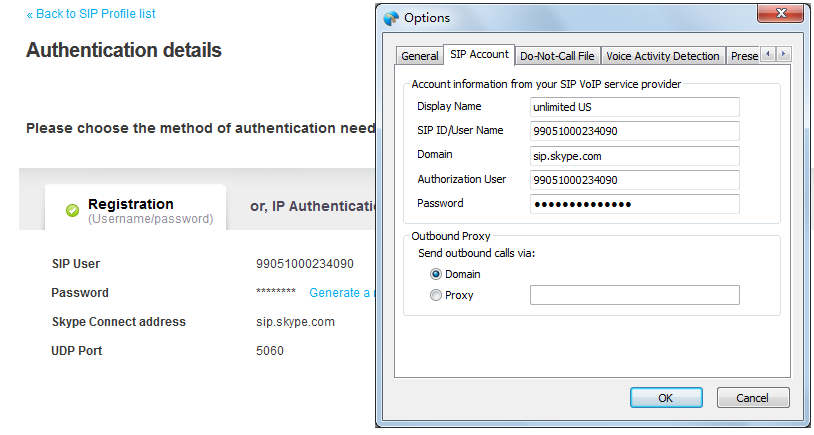
Please click Ecsow auto dialer menu Tools > Options > SIP Account tab, enter your SIP ID/User Name, Domain, Authorization User and Password as follows:
Author: eva
Last update: 2016-01-18 07:35
How to config SIP Trunk at Ecsow Dailer / Voice Broadcast?
The below we use twilio Elastic SIP trunking to demonstrate how to configure it in Ecsow dialer.
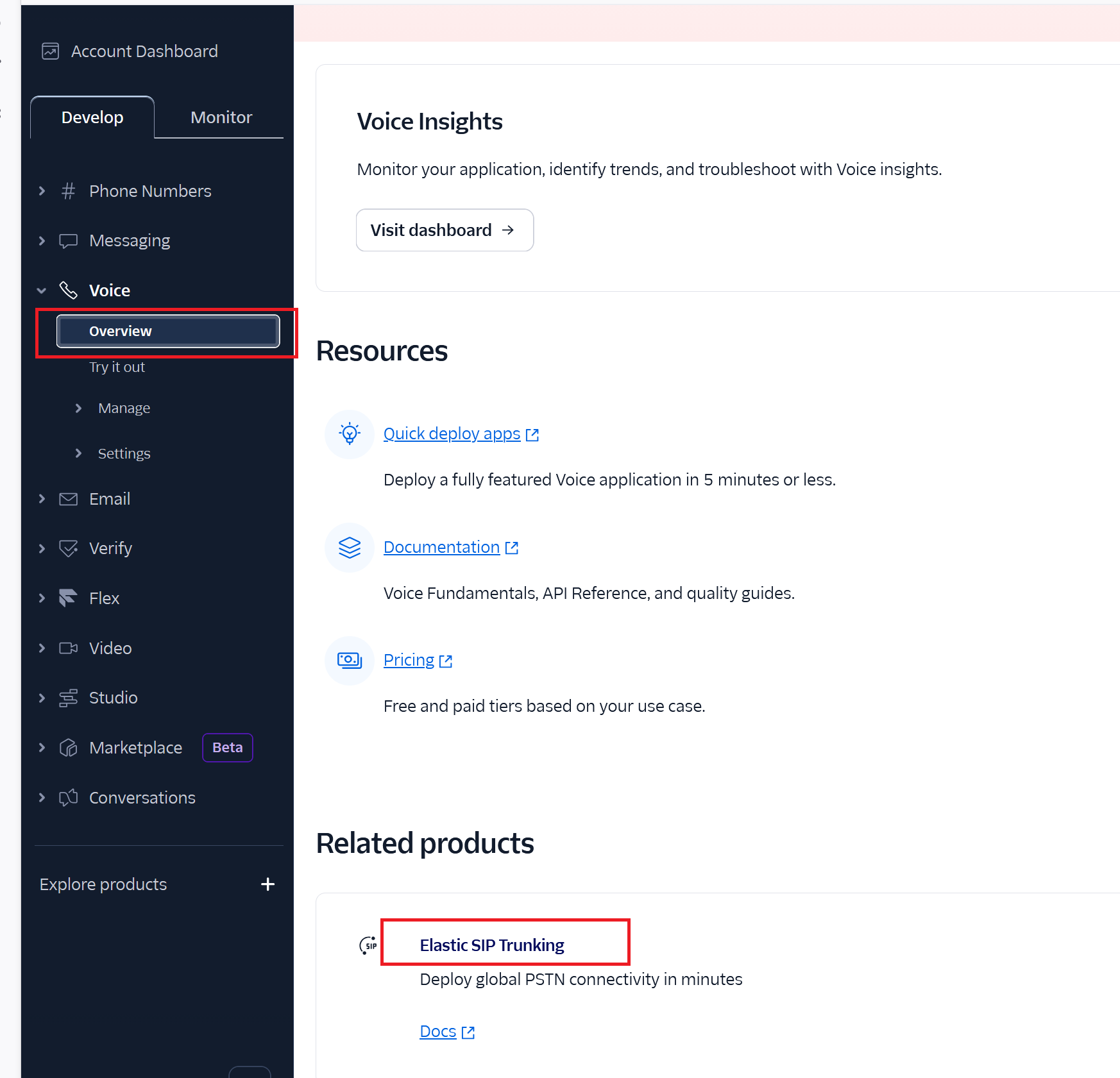
1, Click the “overview” under the “Voice” menu after you login your twilio account. Then click the “Elastic SIP Trunking” link as below.
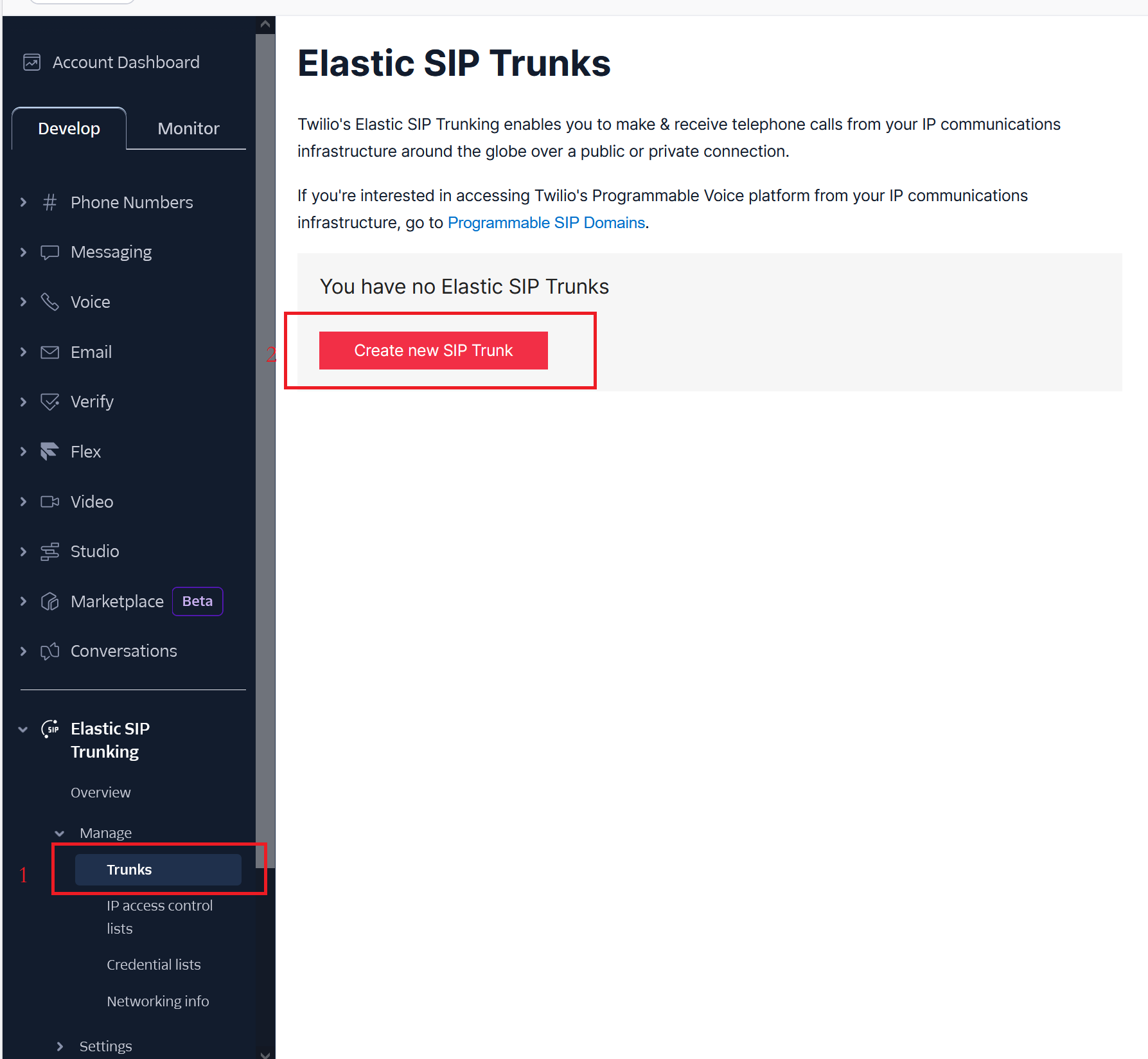
2, It will show up the “Elastic SIP Trunking” page as below, then click the “Create new SIP Trunk” button from the “Trunks” page.
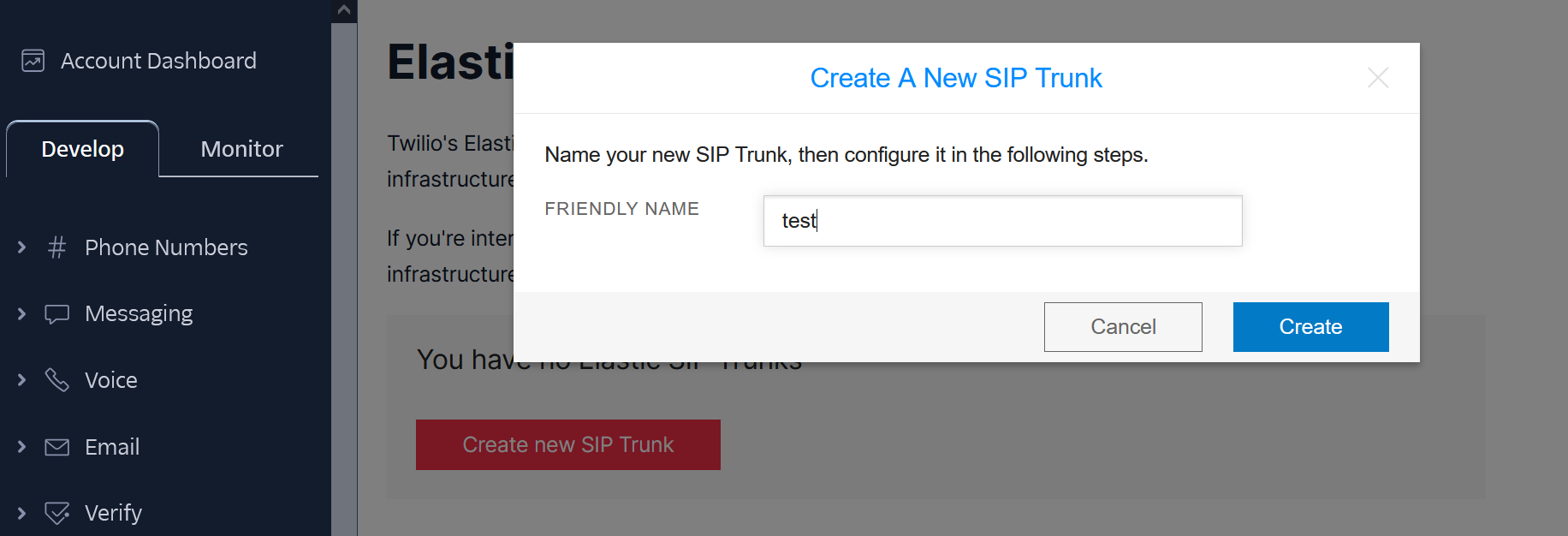
3, You need to input a name.
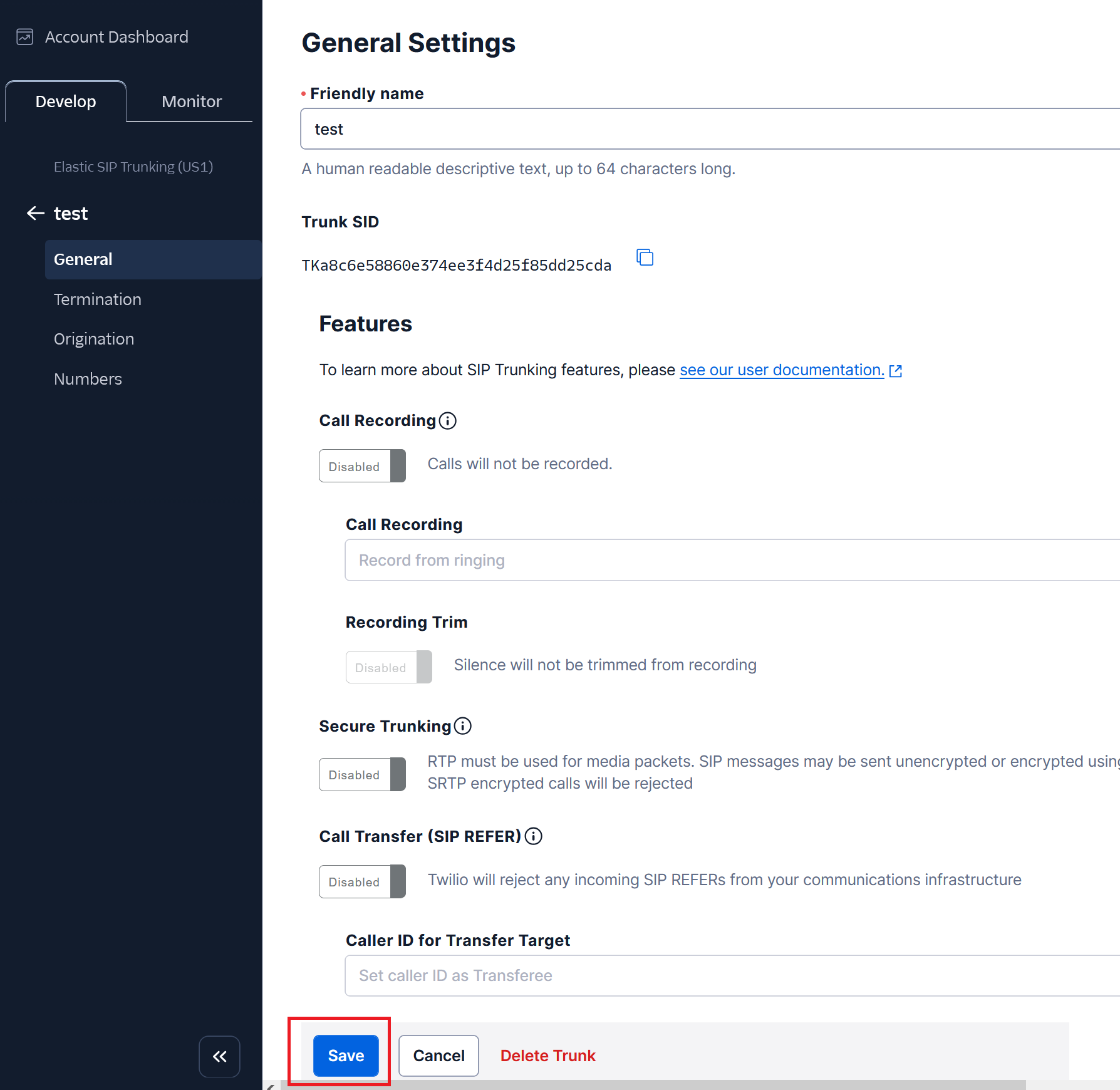
4,By default, it do not need to change anything on General page. Just click the Save button as below.
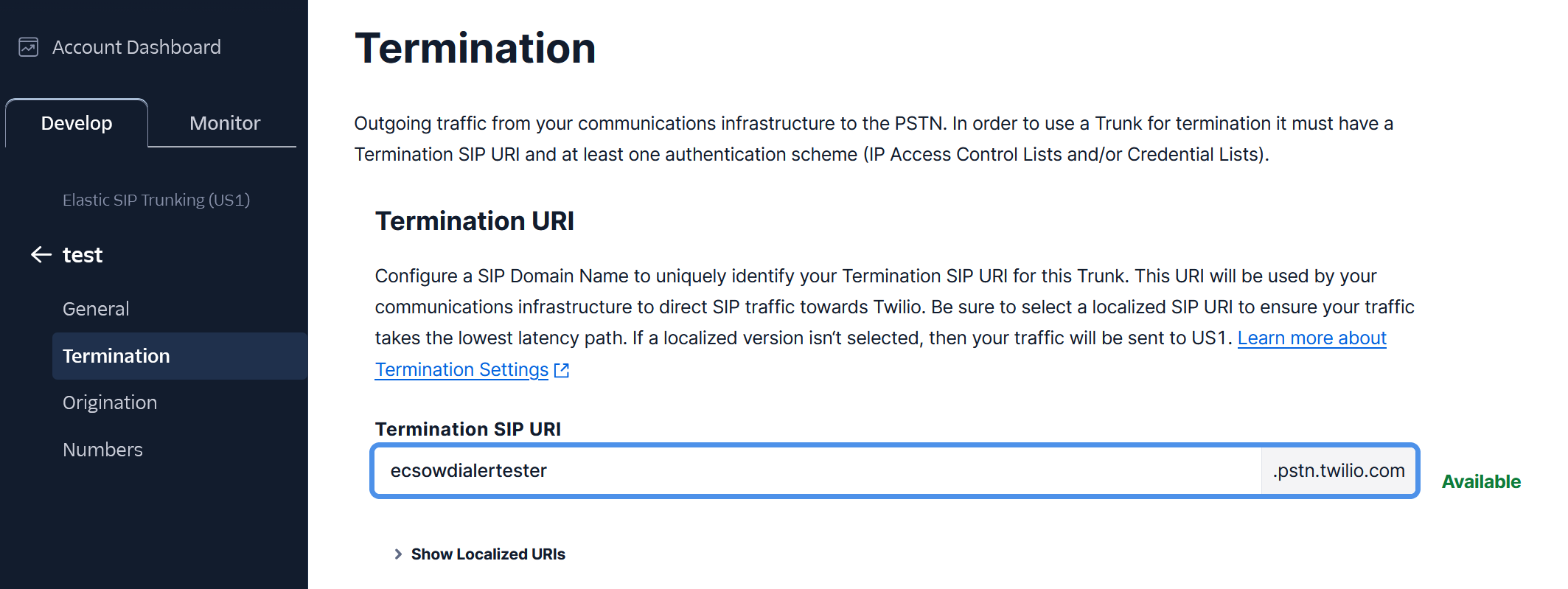
5, Click the “Termination” menu to config it. You need to input the Termination SIP URI with any name. This is the domain name for Ecsow dialer.
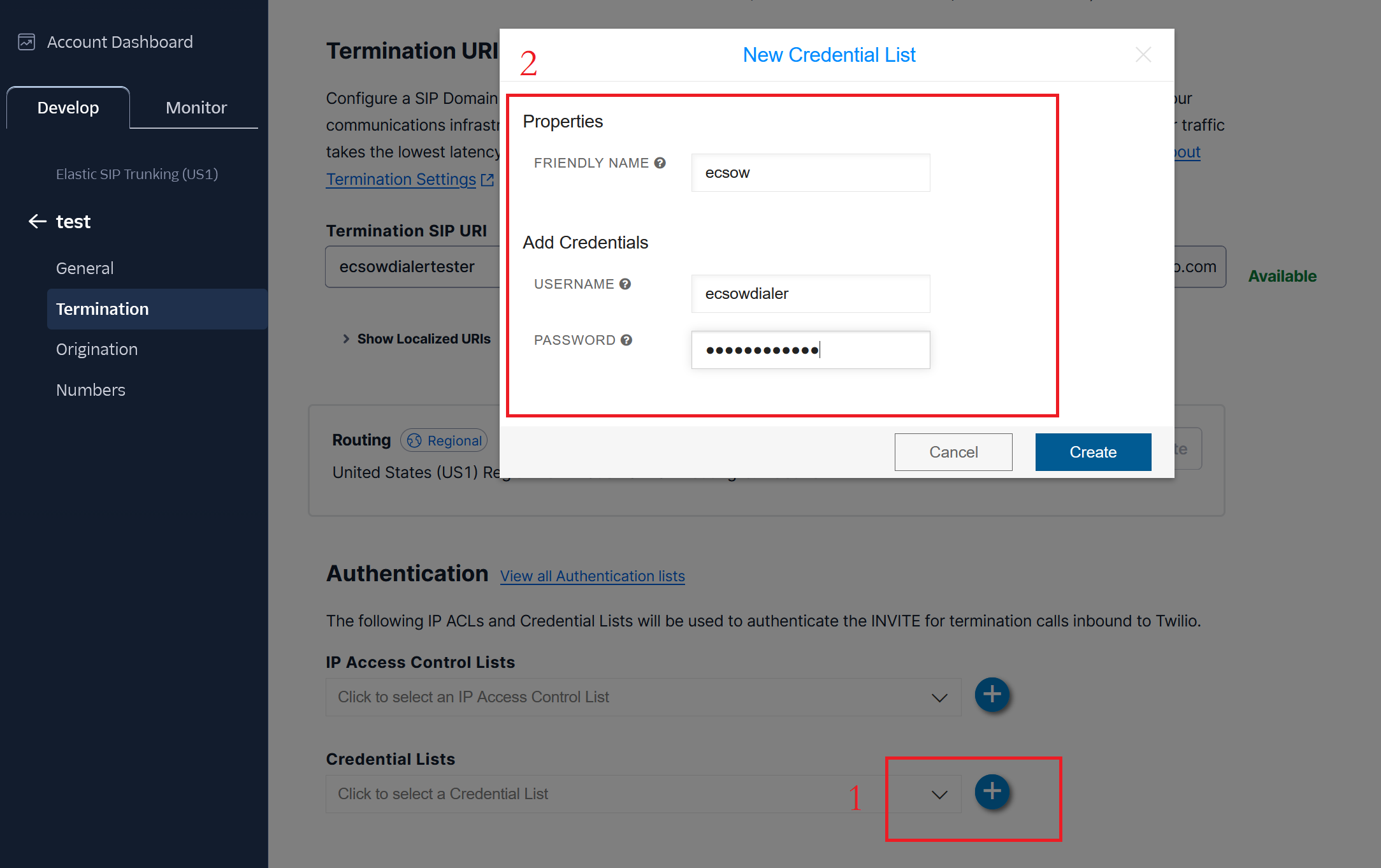
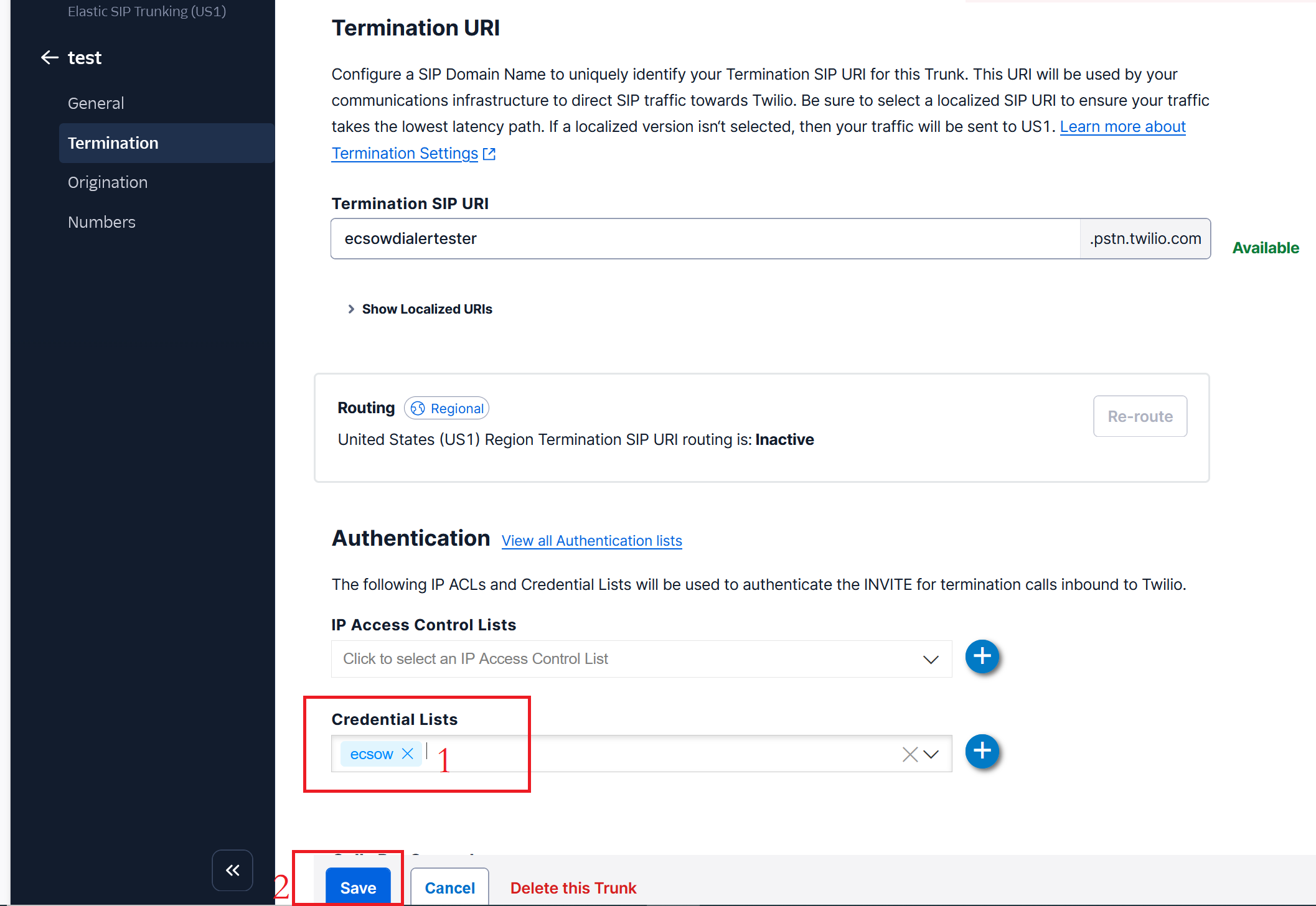
6, You need to add Authentication. Click the + icon from Credential Lists option, then input the username and password. Please remember the username and password, it will be used on Ecsow dialer later.
7, Select the Credential you just added as the below image step 1 shows. Then click the “Save” button to save your settings.
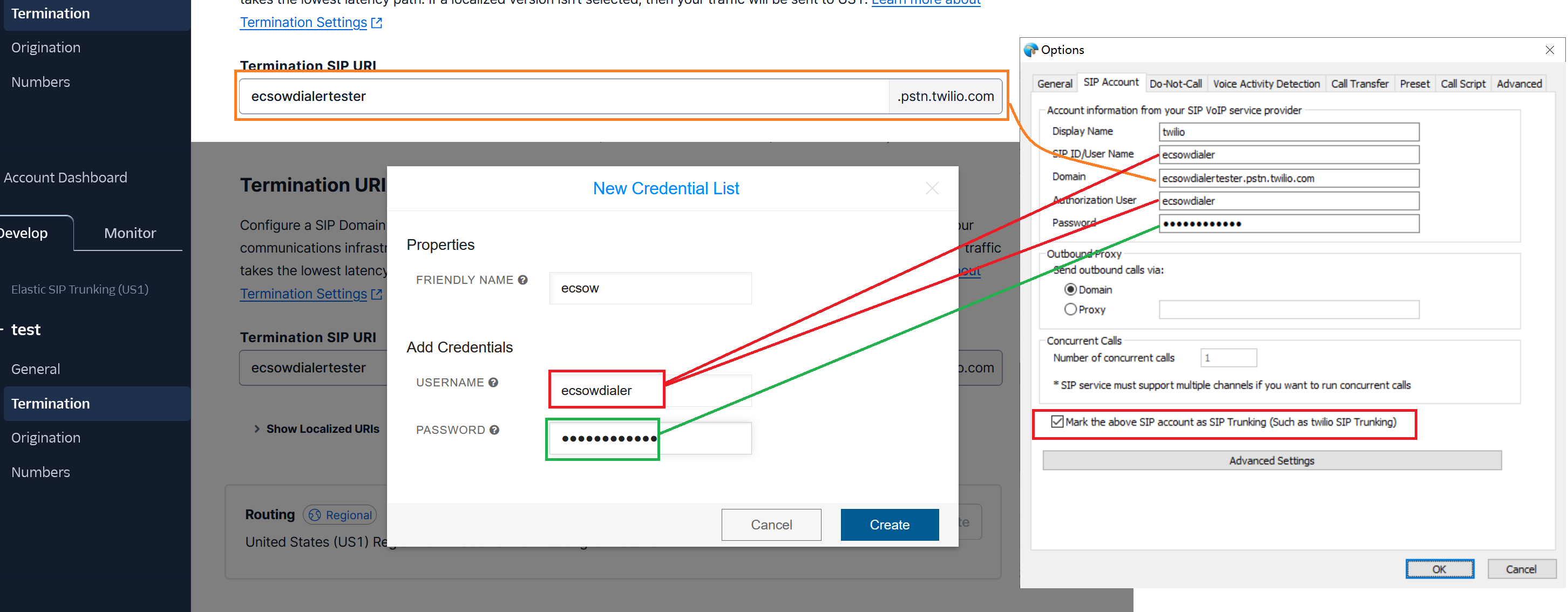
8, You can input your SIP Trunk information on Ecsow dialer as the below image shows. Please enable the “Mark the above SIP account as SIP Trunking” option.
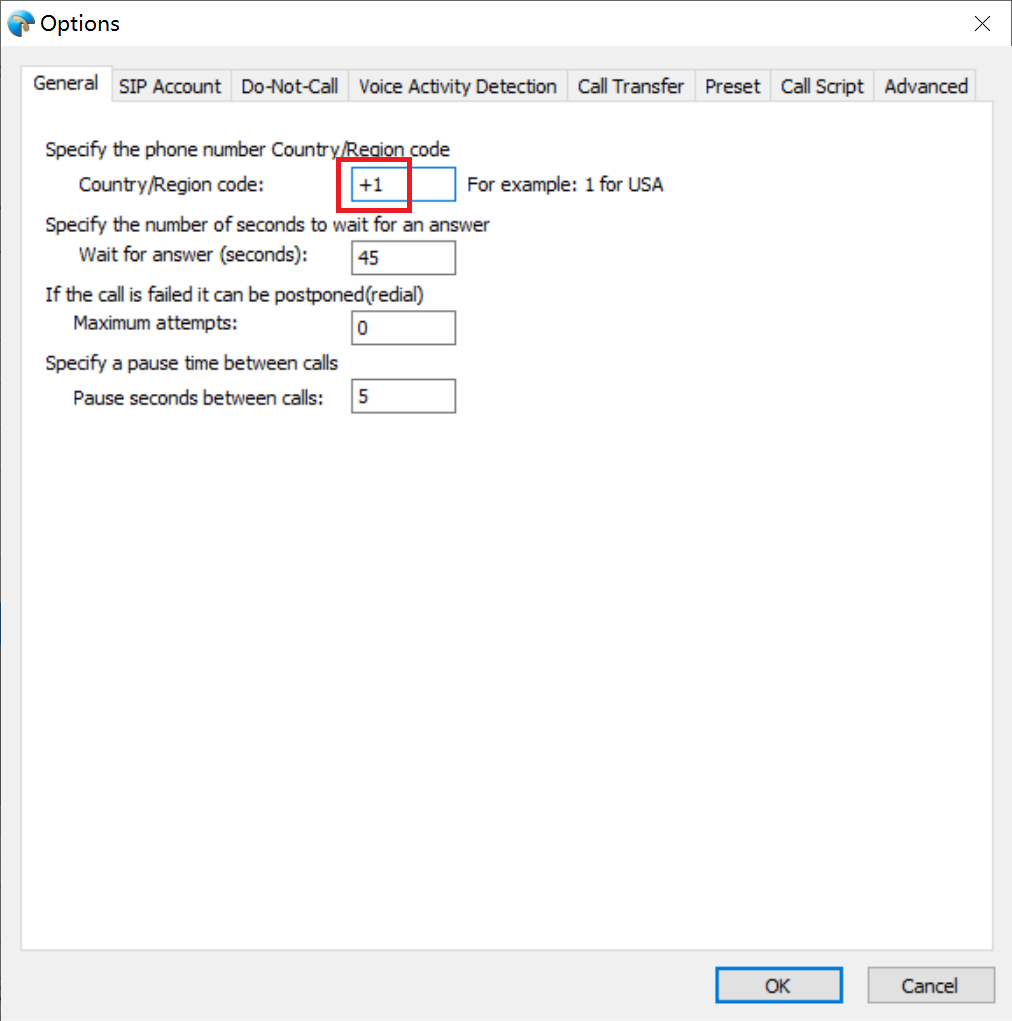
9, The twilio SIP trunk request the + symbol before the Country code. Please remember to add it.
Now, you can make a test call to twilio test number (650)489-4546) or (415)475-8378.
Author: eva
Last update: 2025-10-18 07:29
How to config Vonage on Ecsow Dialer / Voice Broadcast
To use Vonage you must have Vonage soft phone service instead of their standard hardware phone service. Please contact Vonage if you don’t already have.
Step 1, Find your Vonage SIP information.
- Log in to the online user interface (http://my.vonagebusiness.com).
- Click the My Extensions icon on the home page. Alternately, click the Phone Systemicon at the top of the page, and Extensions in the left navigation pane.
- Click the extension you wish to configure.
- Scroll to the bottom of the page, and click Devices to expand the section.

Step 2, Setup Vonage on Ecsow Dialer.
Click Ecsow Dialer menu Tools > Options. Fill in the Vonage account information on Ecsow as below.

Click "OK" to apply the settings.
Author: eva
Last update: 2025-04-30 07:12
How to config Localphone SIP Service on Ecsow Dialer / Voice Broadcast
Step 1, Find your Localphone SIP information.
1, login you Localphone account. Click the Help button in the navigation bar.
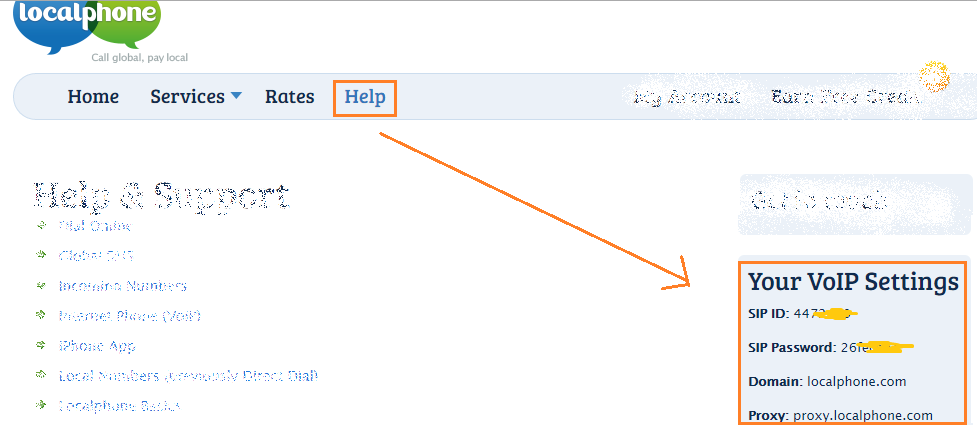
You can get the SIP information from "Your VoIP Settings" as above.
Step 2, Setup your SIP account on Ecsow Dialer.
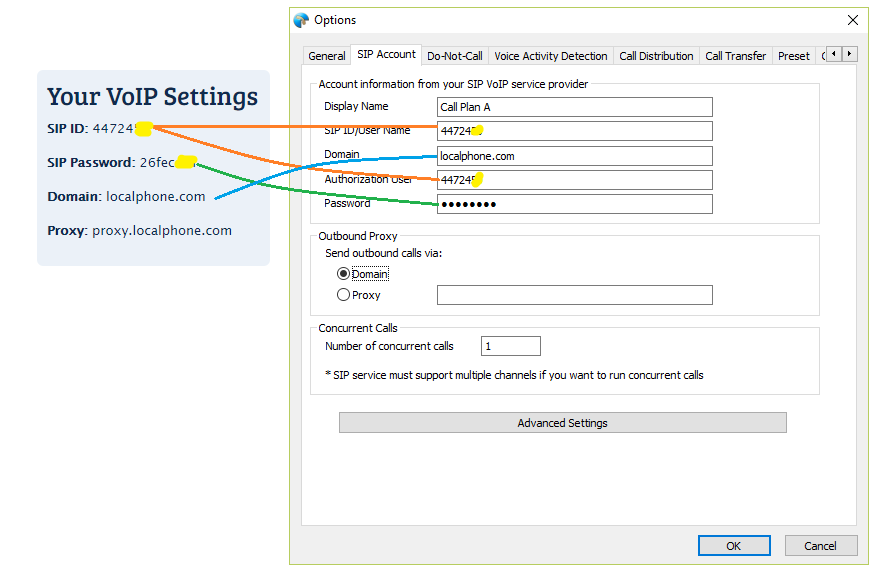
Click OK button to appy the settings.
Author: eva
Last update: 2025-04-30 07:14
How to config RingCentral for Ecsow Dialer / Voice Broadcast
Step 1, Getting the SIP settings for manual Provision.
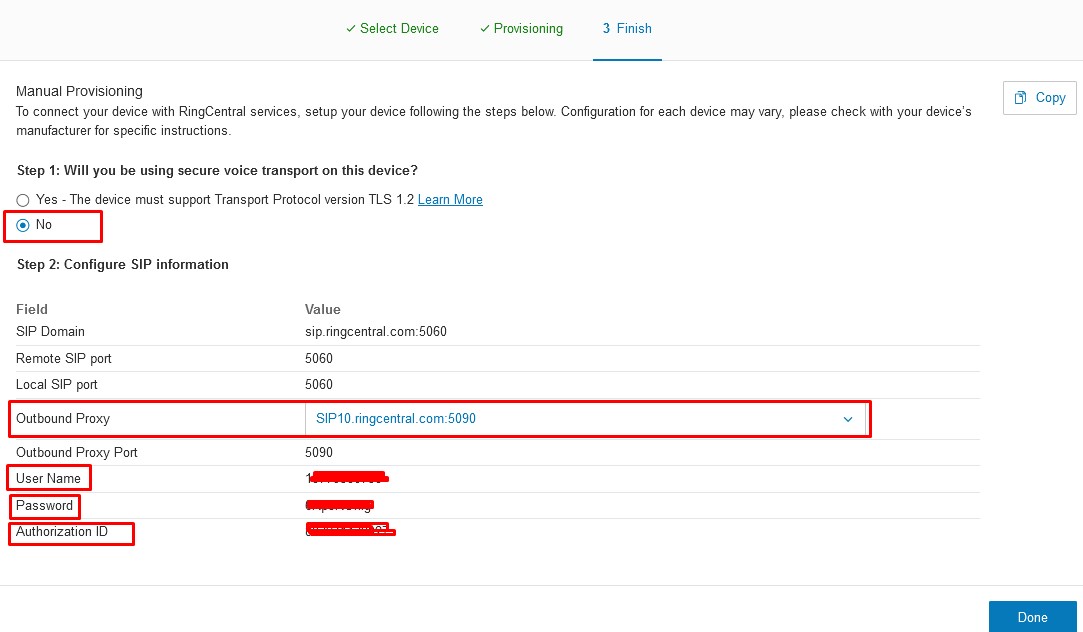
Getting the RingCentral SIP settings here. Or see the below steps.
1. Log in as an Administrator to the RingCentral Online account.
2. Go to Phone System > Phones & Devices.
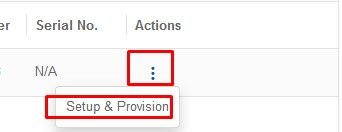
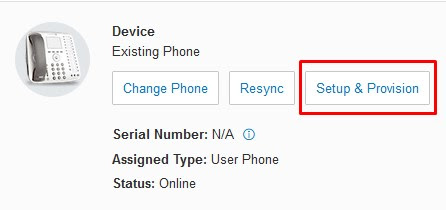
3. Under User Phones, look for the Existing phone that you wish to assign to your Ecsow dialer. Click the existing phone and then press Setup & Provision or under action select Setup & Provision. As shown below.
Picture 1:
Picture 2:
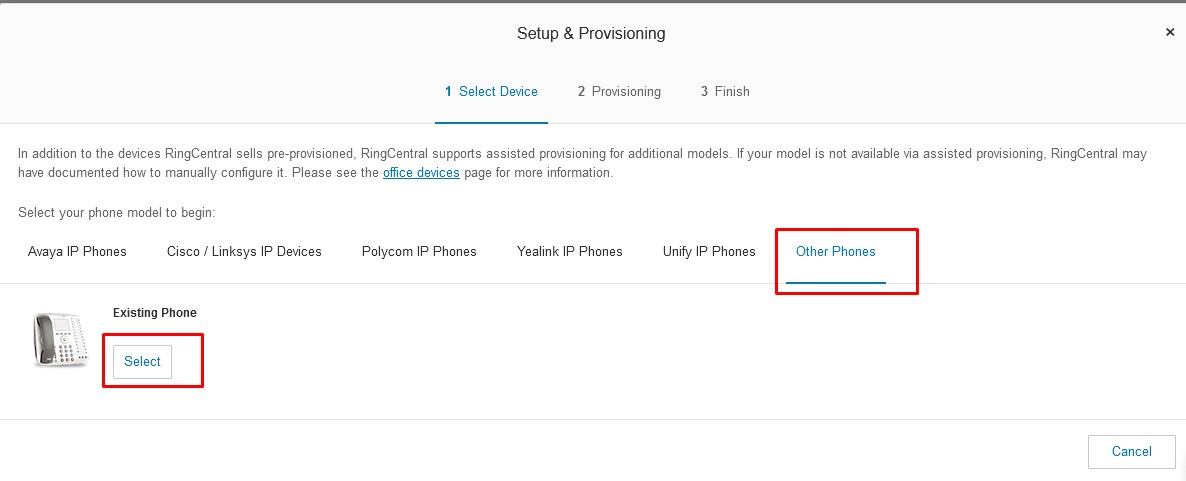
4. Go to Other Phones. Under Existing Phone click Select.
5. In next section Disable TLS(secure voice transport to NO) and Select your nearest outbound Proxy , followed that you will get your SIP settings, which will be used in Ecsow dialer for registration.
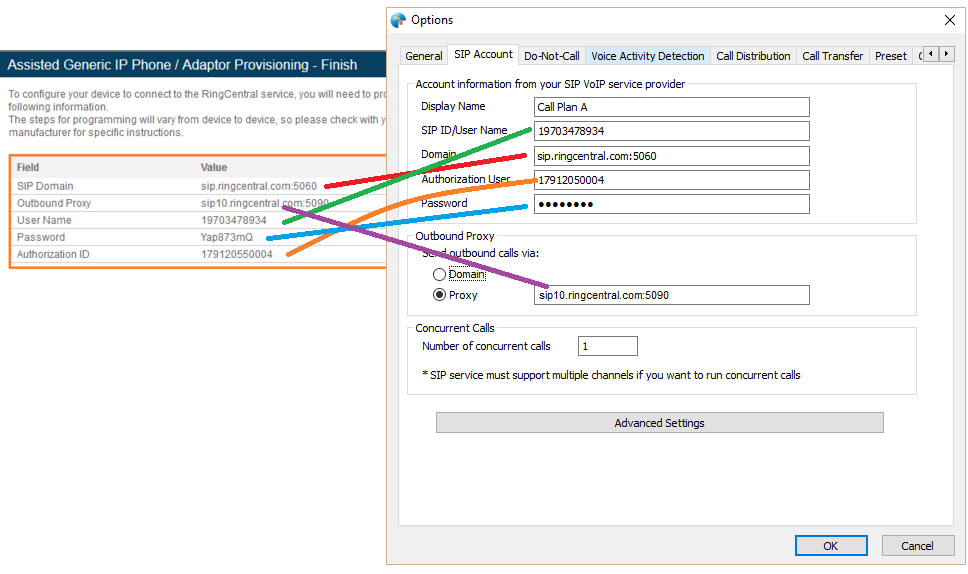
Step 2, Config RingCentral SIP Account on Ecsow Dailer. (Please notice: The Domain endwith 5060 and Proxy endwith 5090)
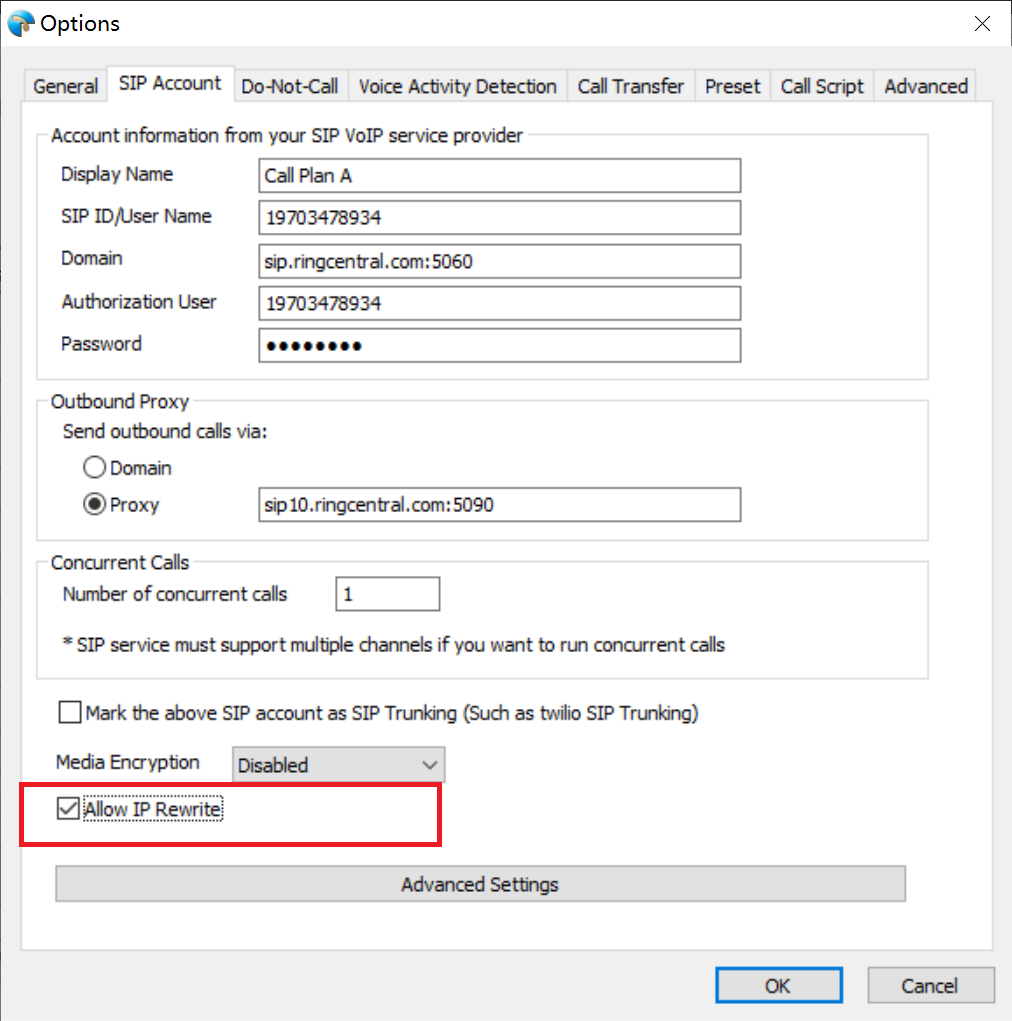
It needs to enable the “Allow IP Rewrite” option as the below image shows.
Click the OK button to appy the settings.
Author: eva
Last update: 2026-10-13 02:39
How to config Nextiva on Ecsow Dialer / Voice Broadcast
Step 1, Getting Nextiva SIP Information.
- For administrators, log in to the NextOS Portal by going to www.nextiva.com and selecting Customer Login from the top right corner. Enter your login credentials and click Sign in. SelectSites & Employees then click on Login under the Admin Login column. Click Users and search for the employee whose information you wish to edit. Click Edit.
For users, log in to the Customer Portal by going to cp.nextiva.com.
- Click View & Edit Devices, then select Add New Device.
- Click on Bring Your Own Device.
- From the Device Type drop down menu, select Generic SIP Phone then click Continue.
- From here, you will need to assign the Generic SIP Phone to an employee. Click on Sites & Employees. Then click on Employees.
- Click Edit next to the employee who you wish to assign the phone.
- Click Assign New Device in the Assigned Devices field.
- From the Device drop down menu, select Generic SIP Phone. Then click Generate next to the Authentication Password. Write down the SIP Username, the Authentication Name, and the Authentication Password (you will later enter these into the soft phone), then click Submit.
Step 2, Fill in the Nextiva SIP Account on Ecsow Dialer.
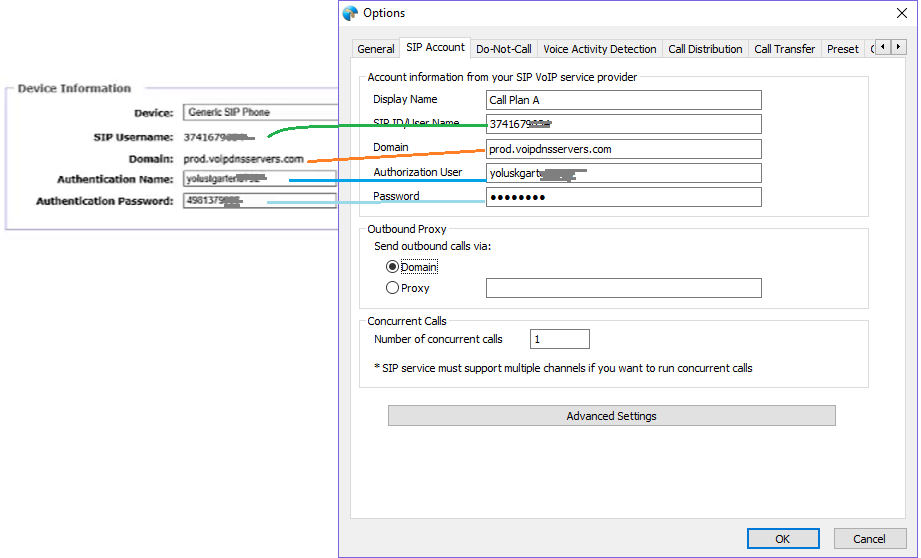
(Notes: You may need to set Send outbound via: Select "Proxy ," and input prod.voipdnsservers.com:5062 )
Click OK button to apply the settings.
Author: eva
Last update: 2025-04-30 07:18
How to config ViaTalk on Ecsow Dialer / Voice Broadcast
Step 1, Getting the ViaTalk SIP Information.
Log into your web based control panel and click the 'SoftPhone Configuration' icon to review your SoftPhone credentials.
Step 2, Fill in the SIP account on Ecsow Dialer.

Click OK to appy the settings.
Author: eva
Last update: 2016-01-19 04:49
How to config Callwithus on Ecsow Dialer / Voice Broadcast
Step 1, Getting the CallWithUs SIP Information.
Login your callwithus account and click the "VoIP Accounts" link to get your SIP account information.

Step 2, Fill in SIP Account on Ecsow Dialer.

Click the OK button to apply the settings.
Author: eva
Last update: 2016-01-19 05:01
How to config CallCentric on Ecsow Dialer / Voice Broadcast
Step 1, Getting your CallCentric SIP Information.
Login to your CallCentric account to get information as below image.

Step 2, Fill in the SIP Account on Ecsow dialer.

Click OK to apply the settings.
Author: eva
Last update: 2016-01-19 05:12
How to config Skype for Ecsow Dialer
Access deniedAuthor: eva
Last update: 2025-10-18 07:31
How to configure Voip.ms with Ecsow Dialer / Voice Broadcast?
1, Setting up VoIP.ms
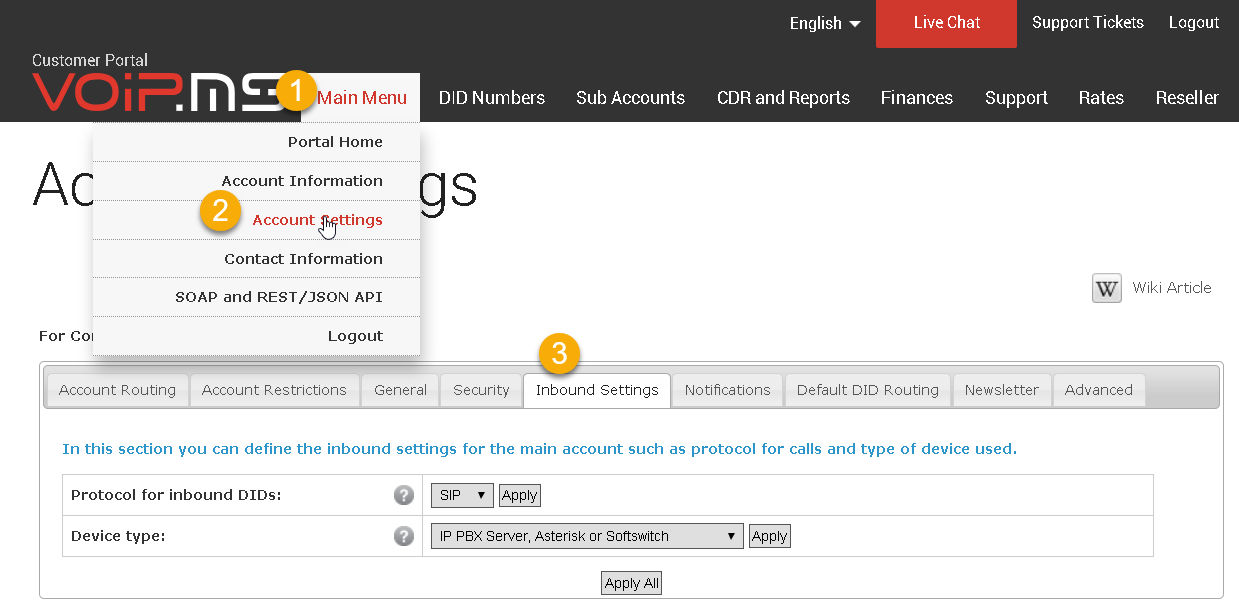
The first thing is adjusting the Device type. To do so please navigate to Main Menu → Account settings → Inbound Settings and make sure that the Protocol for Inbound DIDs is set to “SIP” and that the Device type is set to “IP PBX Server” and apply any changes made.
Dialing mode
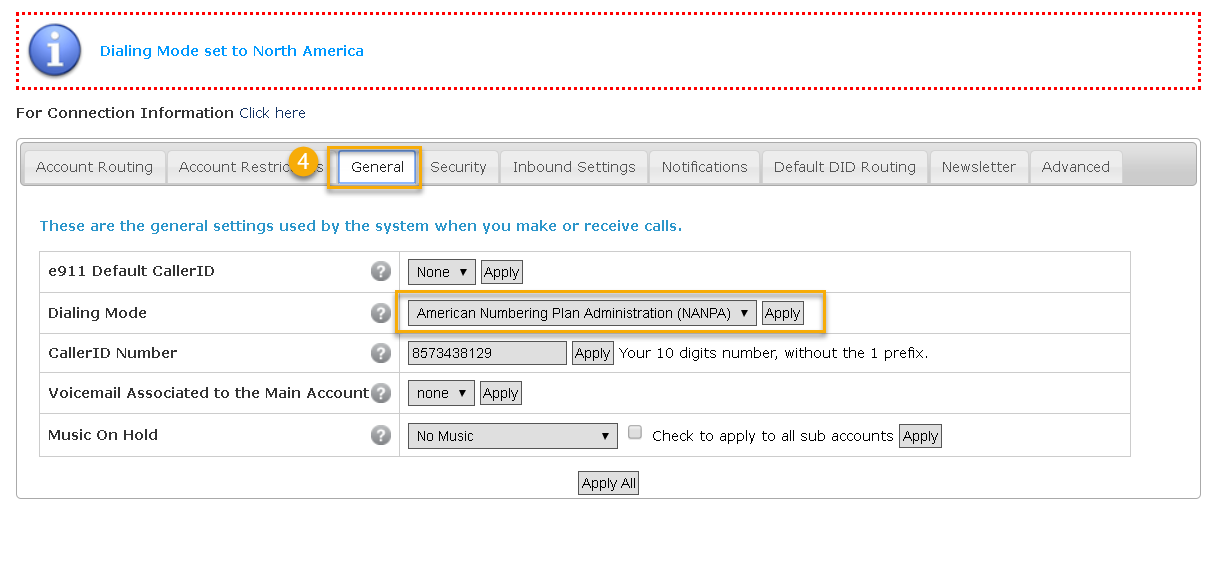
Next, we are going to set our dialing mode under General setting, Choose American Numbering Plan Administration and apply the changes.
DID Management
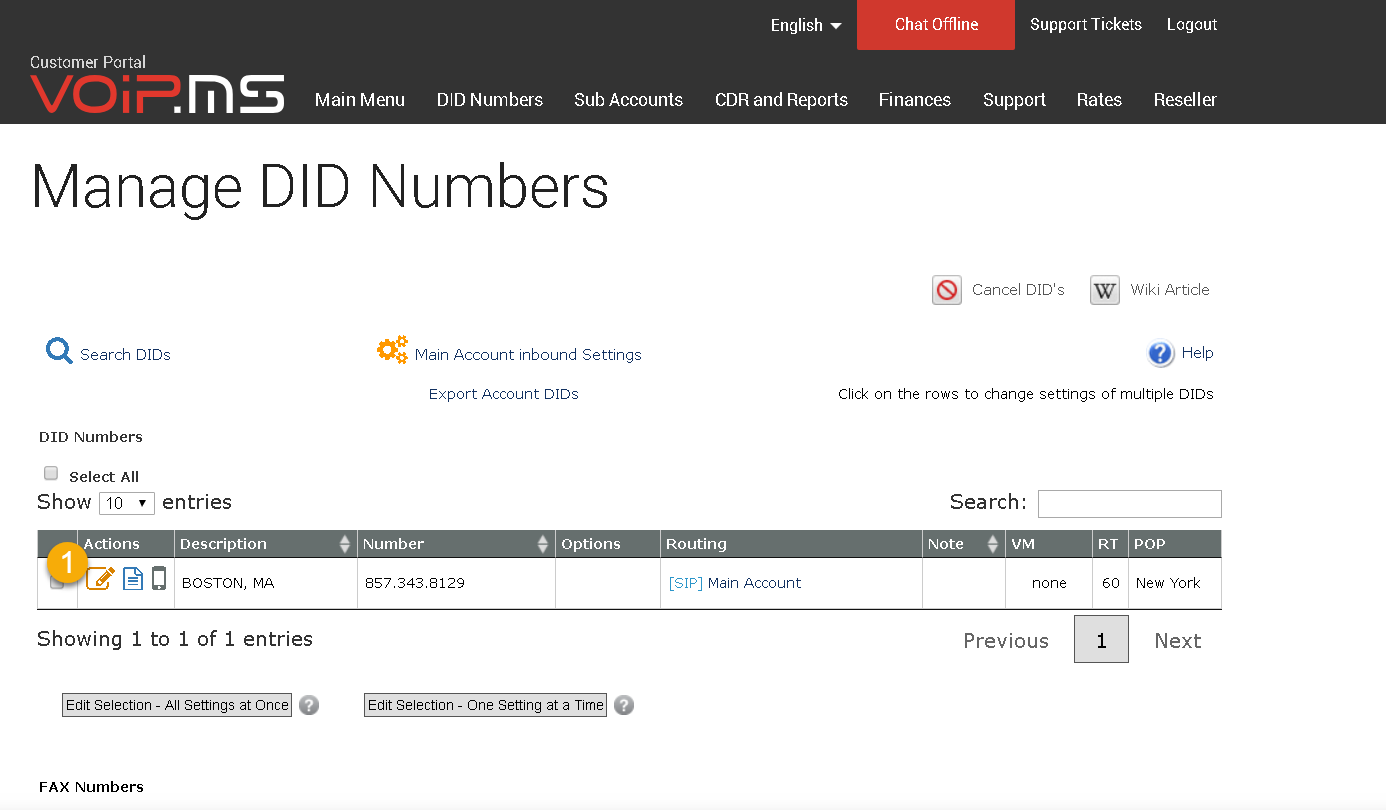
Make sure that the DIDs ordered are linked to your account. To do so navigate to DID Numbers / Manage DID(s). Click on the Edit DID icon and make sure that the routing points to SIP/IAX on your main account.
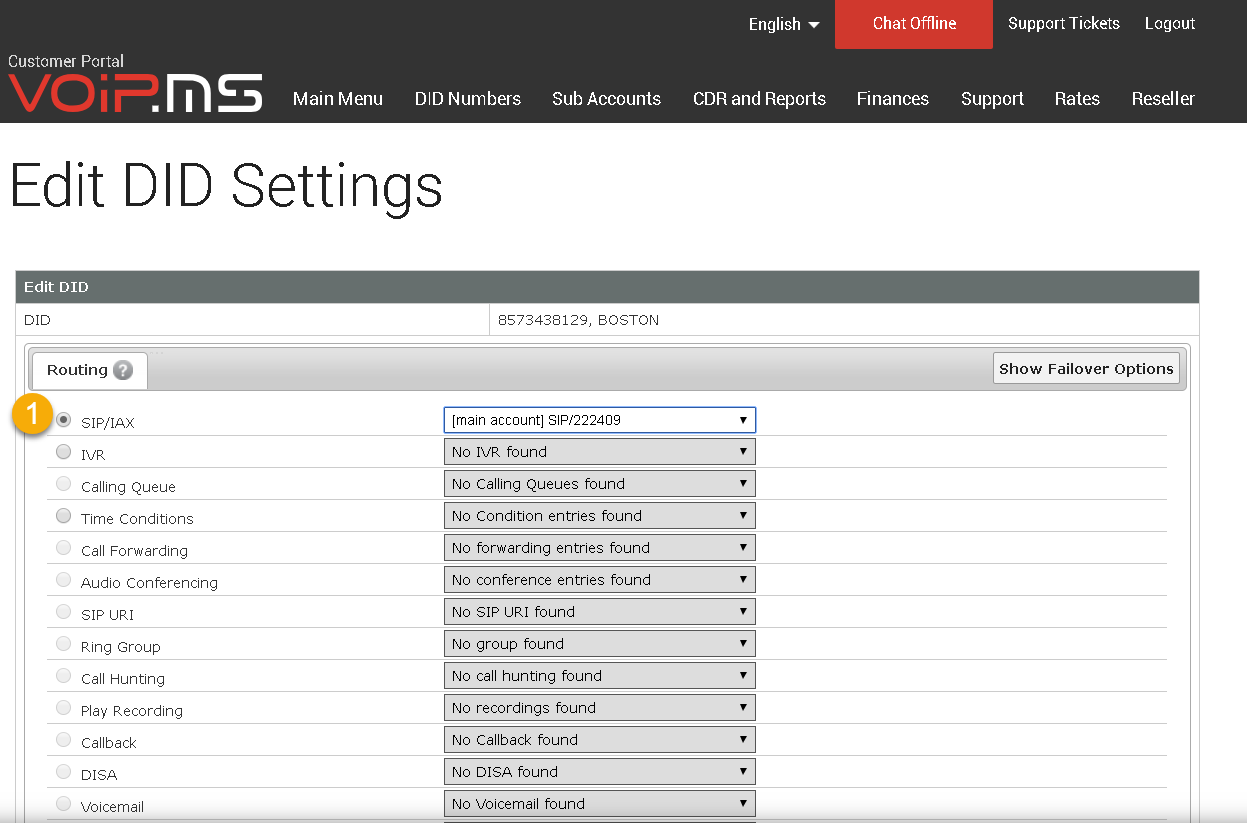
Save the configuration when choosing the correct account.
Account information
In order to register and operate the trunk in Ecsow, you will have to collect some information that will be needed in the configuration of the trunk.
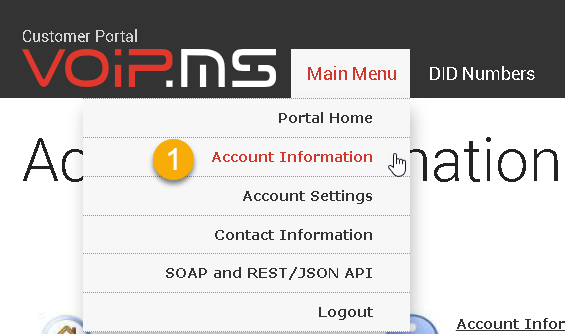
- Username: The username for registering the trunk can be found under Main Menu → Account Information
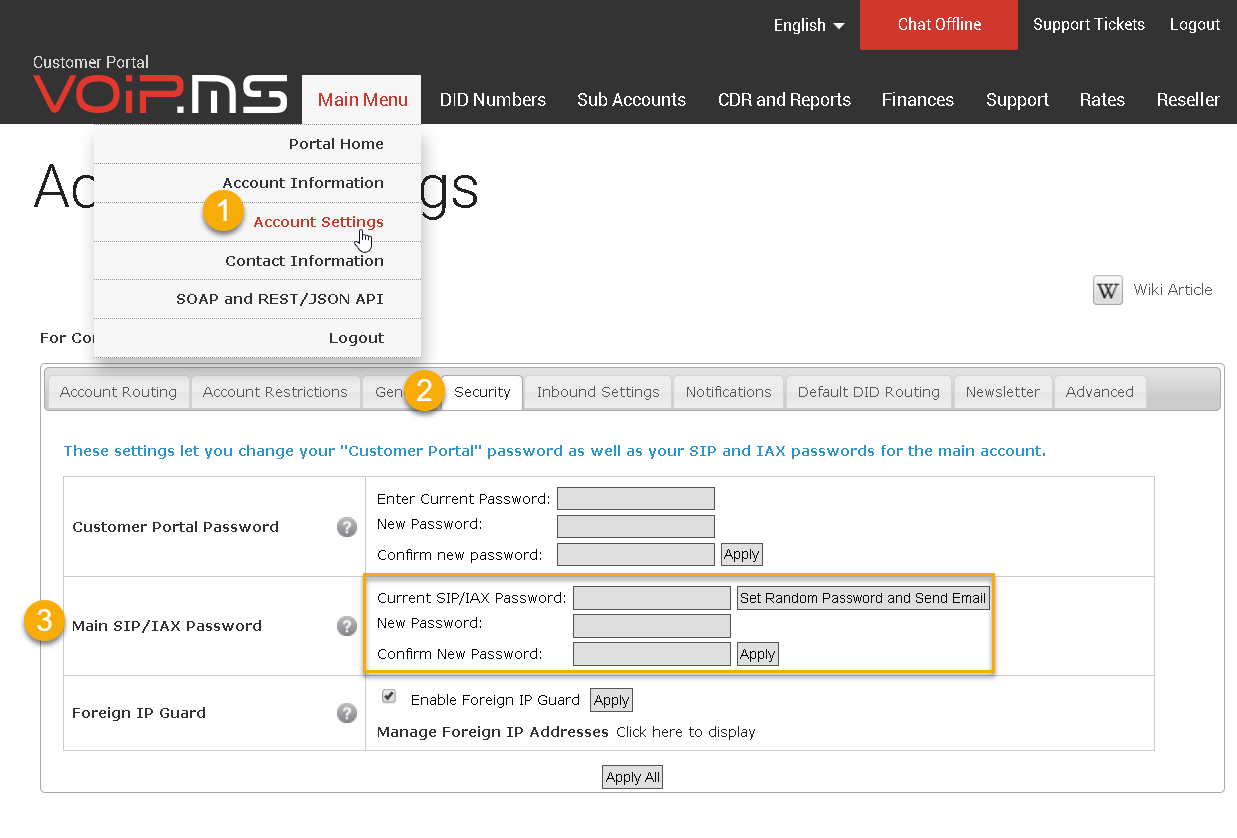
- Password: The trunk password can be found in the email you received from VoIP.ms during the registration process. You can also change the password by navigating to Main Menu → Account Settings → Security.
- DID Number: The DID numbers can be seen by navigating to DID Numbers → Manage DID(s)
- Registrar:Go to Main Menu → Account Settings → Default DID Routing. From here, make note of the selected server. In this example, the server in New (newyork.voip.ms) will be the one used for our configuration.
2, Configuring the Trunk on the Ecsow dialer
- Display Name: Add your DID number
- SIP ID/User Name: Your VoIP.ms user account found under Main Menu → Account Information
- Domain: Is the registrar assigned under Menu → Account Settings → Default DID Routing of your VoIP.ms account, example (newyork.voip.ms)
- Password: VoIP.ms password found under Main Menu → Account Settings → Security
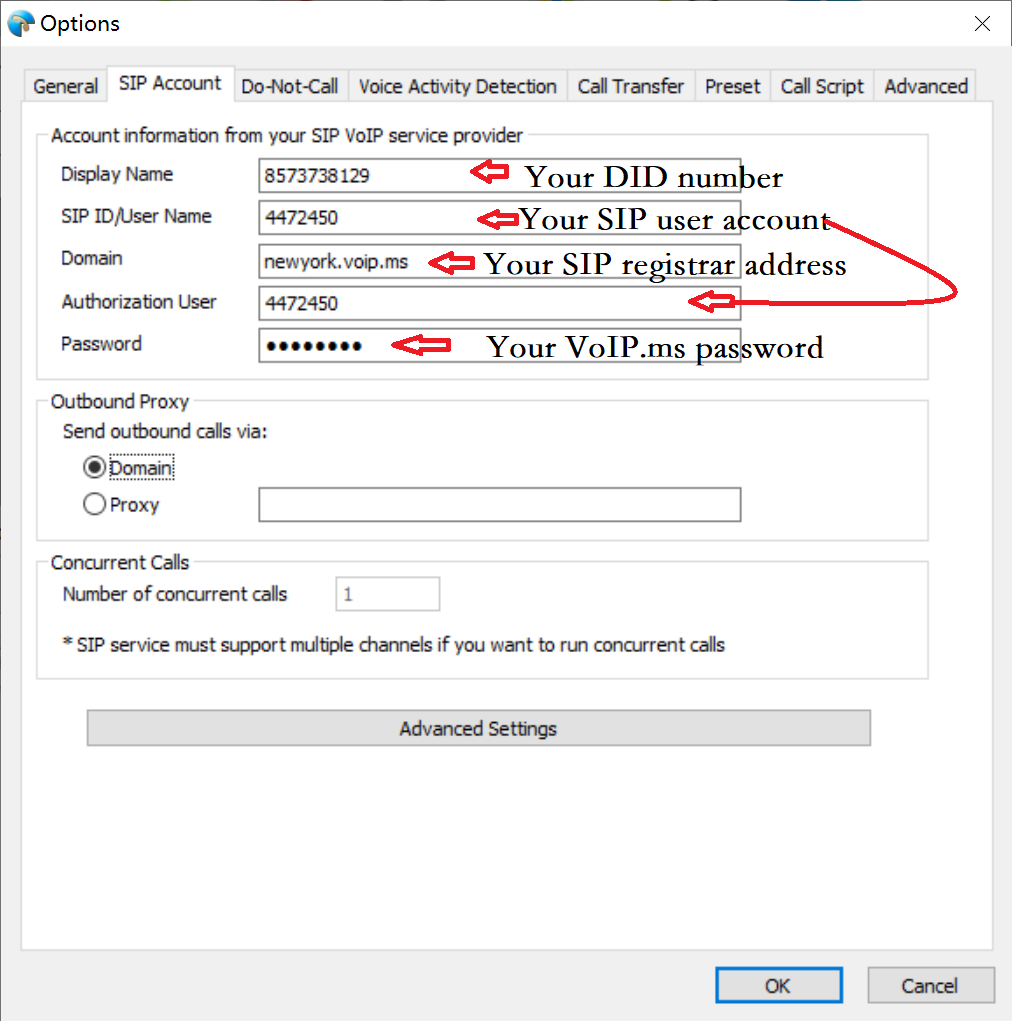
Once you have finished configuring your trunk settings, you can click OK button to save your settings and Ecsow will try to connect it.
Let us know if you run into any issues, you can send us an email at support@ecsow.com.
Author: eva
Last update: 2024-08-06 10:07
How to config Ecsow Dialer / Voice Broadcast to use Twilio?
A. You can follow the below steps if you want to use the twilio Elastic SIP Trunking to work with Ecsow dialer.
1, Click the “overview” under the “Voice” menu after you login your twilio account. Then click the “Elastic SIP Trunking” link as below.
2, It will show up the “Elastic SIP Trunking” page as below, then click the “Create new SIP Trunk” button from the “Trunks” page.
3, You need to input a name.
4,By default, it do not need to change anything on General page. Just click the Save button as below.
5, Click the “Termination” menu to config it. You need to input the Termination SIP URI with any name. This is the domain name for Ecsow dialer.
6, You need to add Authentication. Click the + icon from Credential Lists option, then input the username and password. Please remember the username and password, it will be used on Ecsow dialer later.
7, Select the Credential you just added as the below image step 1 shows. Then click the “Save” button to save your settings.
8, You can input your SIP Trunk information on Ecsow dialer as the below image shows. Please enable the “Mark the above SIP account as SIP Trunking” option.
9, The twilio SIP trunk request the + symbol before the Country code. Please remember to add it.
Now, you can make a test call to twilio test number (650)489-4546) or (415)475-8378.
B. You can follow the below steps iIf you use the twilio voice sevice.
Once your active your sip account on Twilio.com. You will got the following credentials information as the below shows.
Please use the following credentials to setup your Ecsow Dialer System.
Domain/Host: justcallv1.sip.us1.twilio.com
Username: 191287
Password: Oc1544519871
Input your SIP information at Ecsow dialer -> SIP Account tab as the below image shows.

Click the “OK” button to apply your settings.
Author: eva
Last update: 2025-10-18 07:33
How to config OnSIP for Ecsow Dialer / Voice Broadcast
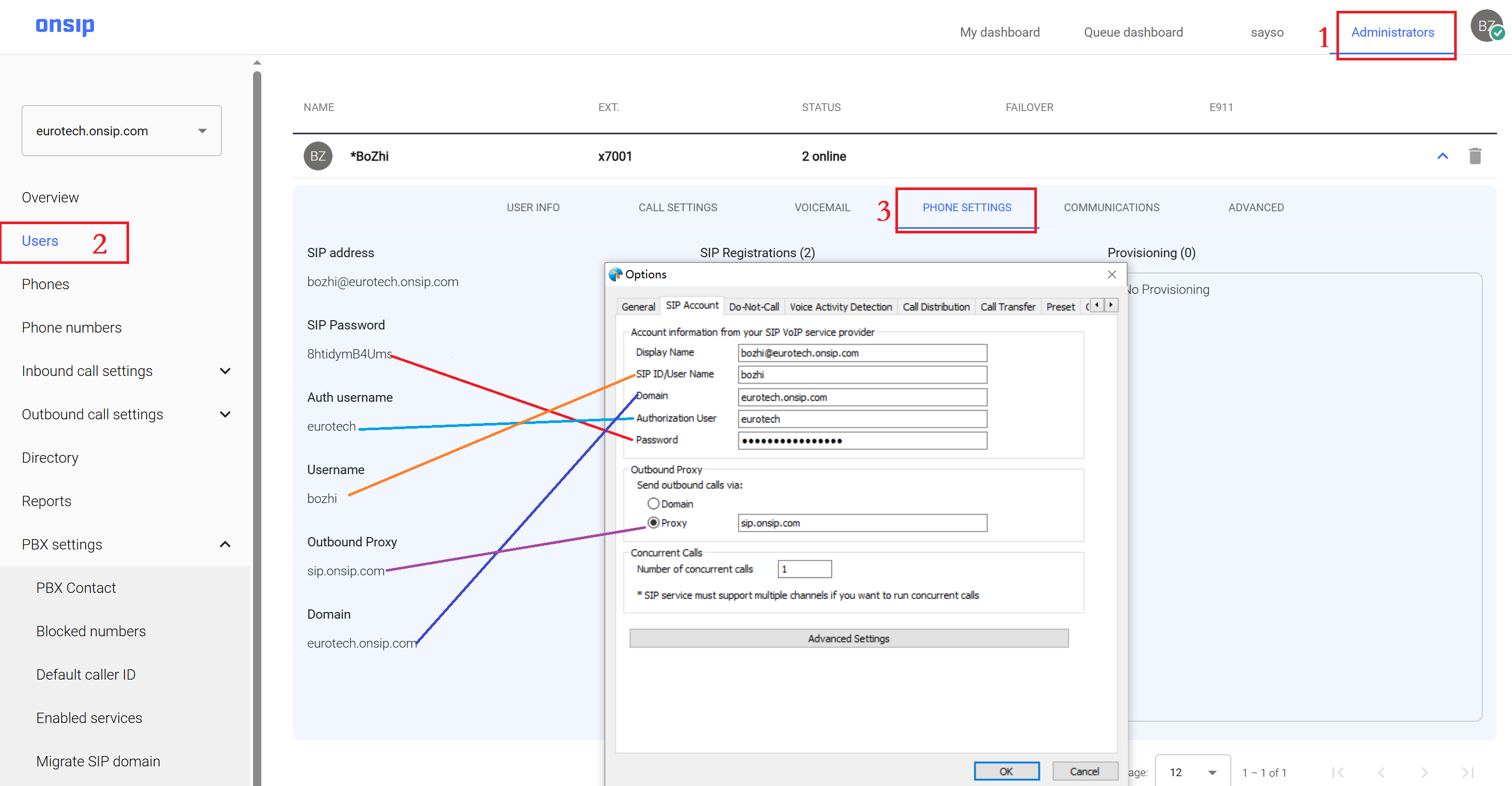
Please login your onsip account, then click the "Administrators" tab > "Users" button, click the user to show the user information detais as the below image shows.
Author: eva
Last update: 2025-04-07 13:56
How to config Anveo for Ecsow Dialer/Voice Broadcast
Find your Anveo credentials: To do so, log into your Anveo account, hover over the 'My Account' menu, and click 'Account Preferences', and on the left click on 'SIP Device Registration'. Please see the below image.
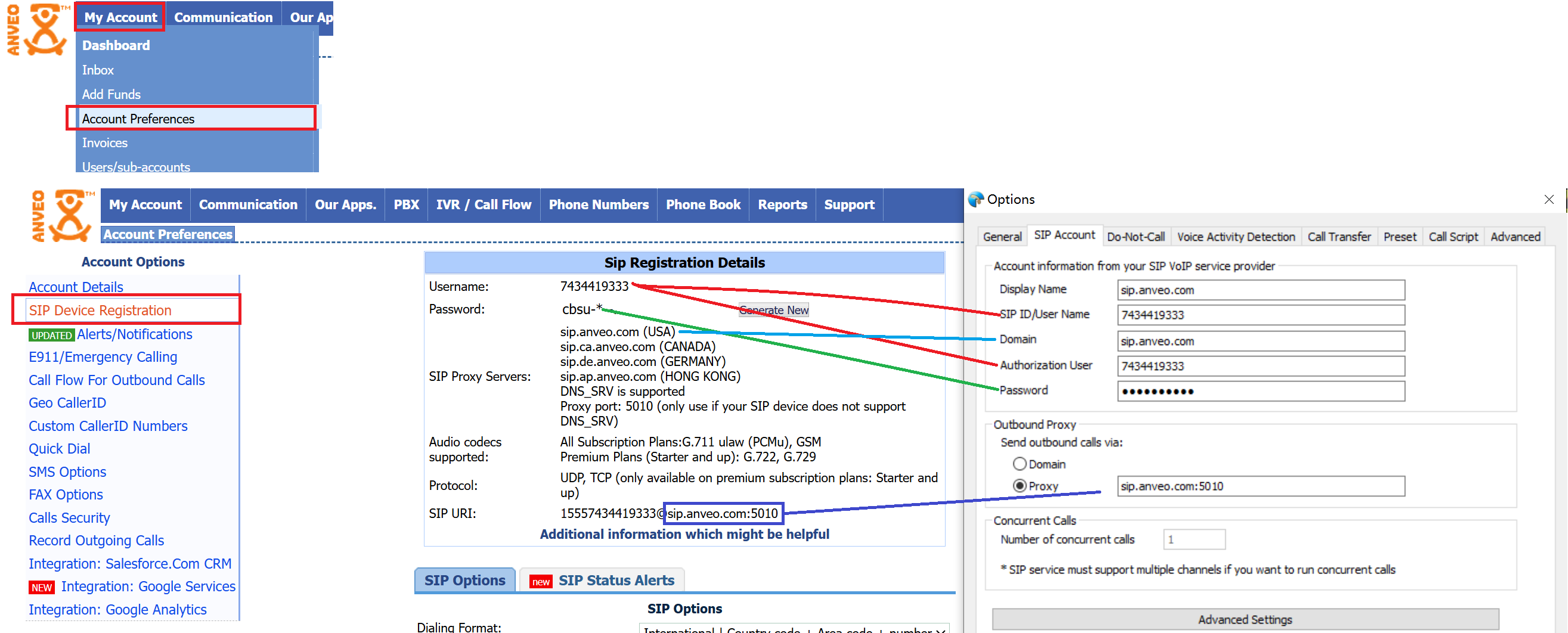
Copy and paste your username and password found above. Please notice the proxy option.
Author: eva
Last update: 2025-04-30 07:06
How to config telnyx for Ecsow Dialer/Voice Broadcast
Please login your telnyx account, then click the "Real-Time Communications > Voice > SIP Trunking". Please select the "Credentials" type when you create SIP connection as the below image shows.
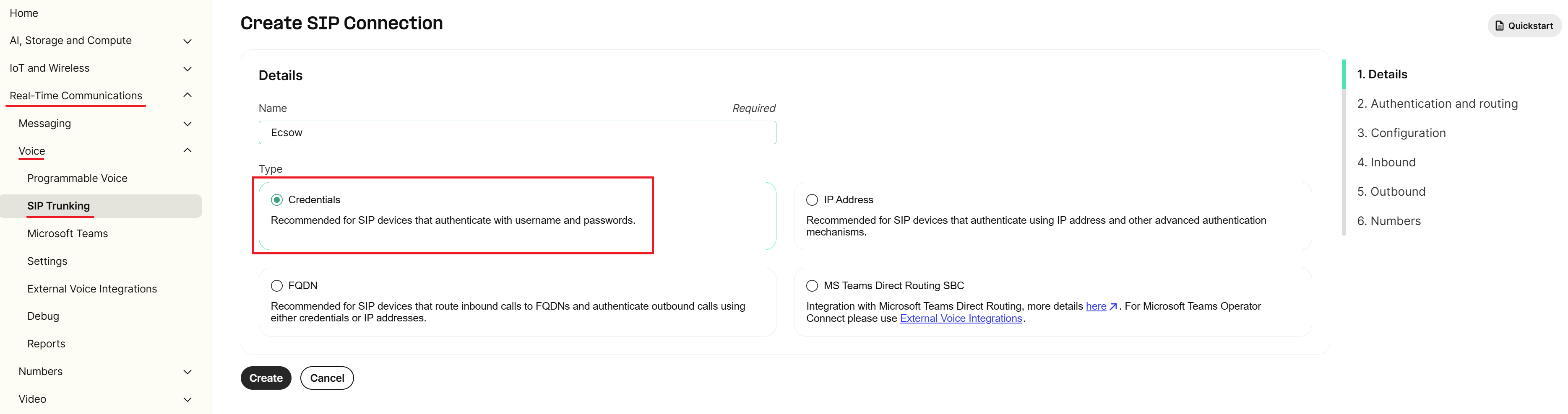
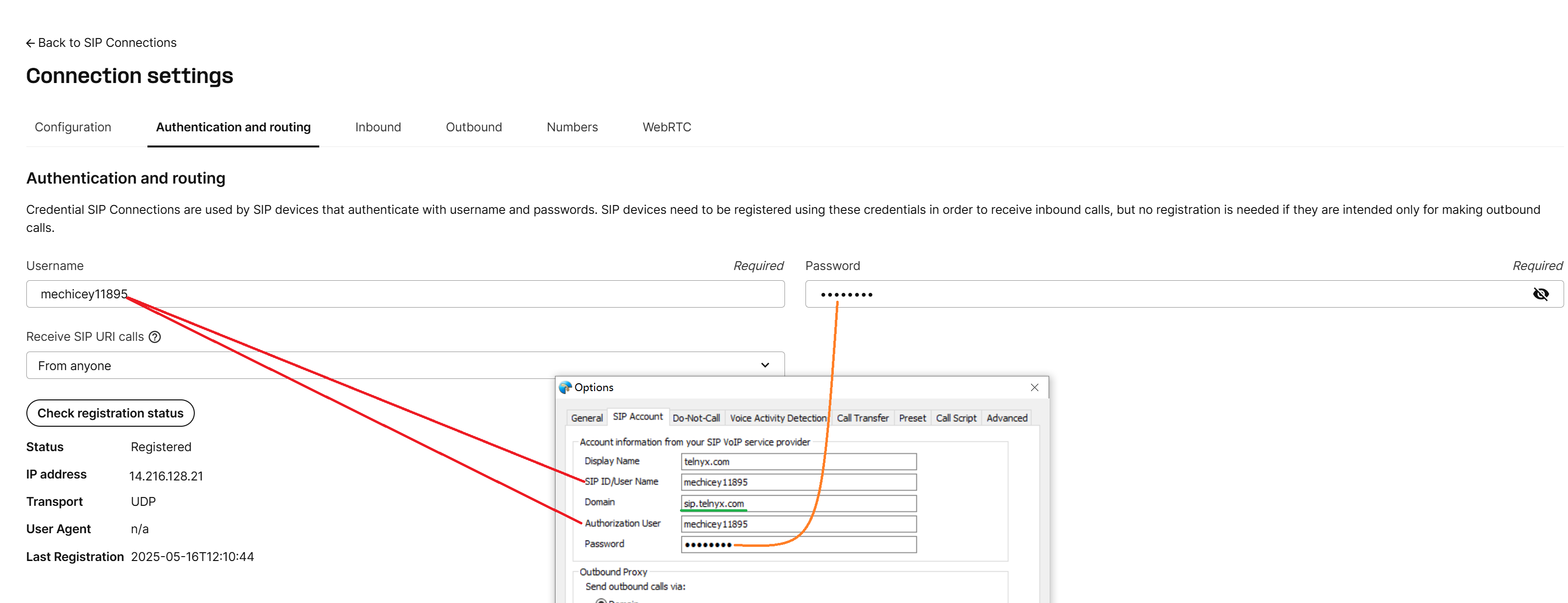
You can choose the default settings for other steps. It will auto create a username and password for you. You can also change it later. Please copy these information to Ecsow dialer as the below image shows. Please notice the "Domain" field should be sip.telnyx.com .
Author: eva
Last update: 2025-05-16 14:28
How to config illyvoip on Ecsow Dialer / Voice Broadcast
This guide will walk you through creating and configuring illyvoip on Ecsow dialer.
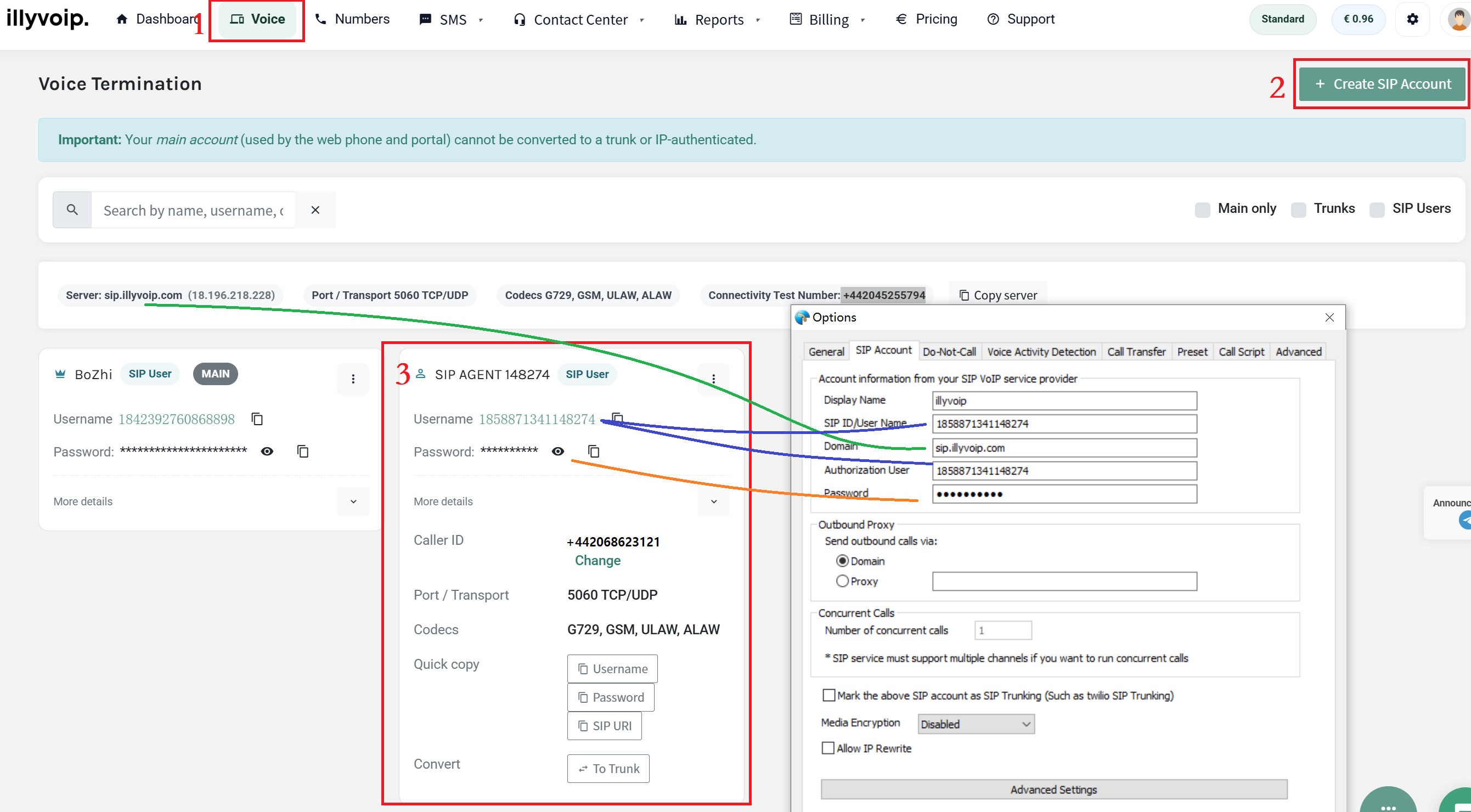
config illyvoip on Ecsow dialer
- Log in to your illyvoip dashboard.
- Click on the Voice tab in the top navigation bar to access the Voice Termination management page.
- On the Voice Termination page, click the + Create SIP Account button in the top-right corner.
- Follow the on-screen prompts to set up a new SIP User account (note: your main account cannot be converted to a trunk/IP-authenticated account).
After creating your SIP account, locate it in the list of SIP Users. You will need the following details for configuration:
- SIP ID/Username: Your unique SIP username (e.g.,
1858871341148274)
- Password: Your account password
- Domain/Server:
sip.illyvoip.com
Open your Ecsow dialer and navigate to the SIP account setup screen. Enter the credentials as follows:
- Display Name: Enter a name for your account (e.g.,
illyvoip).
- SIP ID/Username: Paste your SIP username.
- Domain: Enter
sip.illyvoip.com.
- Authorization User: Paste your SIP username again (matches the SIP ID).
- Password: Paste your account password.
- Save the configuration in your Ecsow dialer.
- Use the connectivity test number (
2045255794) provided on the illyvoip Voice page to test your connection. Please to configure your Country code 44 if you want to test the number (2045255794) .
- Confirm that you can make and receive calls successfully.
Author: eva
Last update: 2026-03-14 02:58
Use IP PBX System
How to config IP PBX on Ecsow Dialer / Voice Broadcast
There use Asterisk to demonstrate how to config with IP PBX.
Step 1, Creating SIP Accounts from your Asterisk.
There actually have two options for creating a SIP account on Asterisk, the configuration file would be sip.conf for chan_sip, or pjsip.conf for chan_pjsip/res_pjsip. (Note: chan_pjsip is only available in Asterisk 12 or later. ) These files reside in the Asterisk configuration directory, which is typically /etc/asterisk.
For example, we add the sip account karen-demo on sip.conf.
[karen-demo]
type = friend
username = karen-demo
secret = 1234
context = tutorial
host = dynamic
Step 2, Config the SIP account on Ecsow Dialer.
- SIP ID/ User Name - This should be set to karen-demo on Ecsow. This username corresponds directly to the section name in square brackets in sip.conf.
- Domain - The location of the server which the phone should register to. This should be set to the IP address of your Asterisk system.
- Authentication User - On Asterisk-based systems, this will be the same as the SIP user name above.
- Outbound Proxy - This is the server with which your phone communicates to make outside calls. This should be set to the IP address of your Asterisk system.
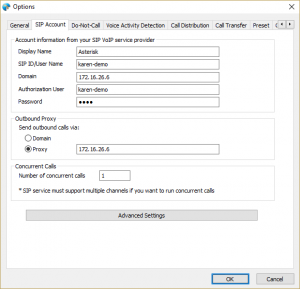
Author: eva
Last update: 2016-01-19 09:56
Troubleshooting
How to fix the "Undefined external error" (status=450001) problem?
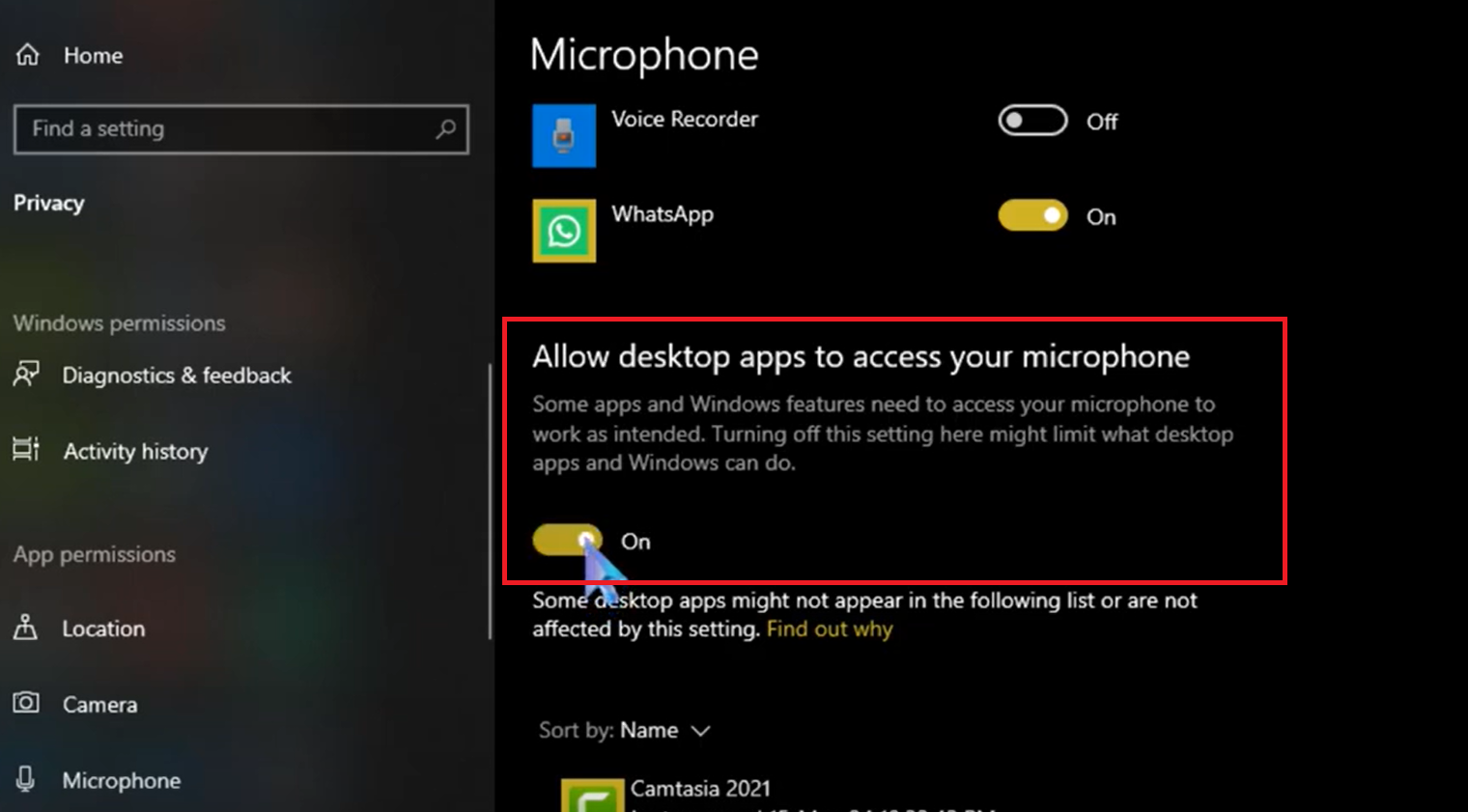
The issue is caused by the microphone permission.
Please fix microphone permission in the Windows settings.
Please select Start > Settings > Privacy & security. Then look for Microphone under App permissions and make sure Microphone access is turned on.
And please make sure the "Allow desktop apps to access your microphone" has turned on.
Then restart Ecsow dialer to have the issue fixed.
Author: eva
Last update: 2024-11-02 02:40
Licensing/Activation
How to allow Ecsow dialer through Windows firewall?
1, Click on the Windows Start button, then type Control Panel into the search box, and then press the Enter key.

2, In Control Panel, click on the System and Security.
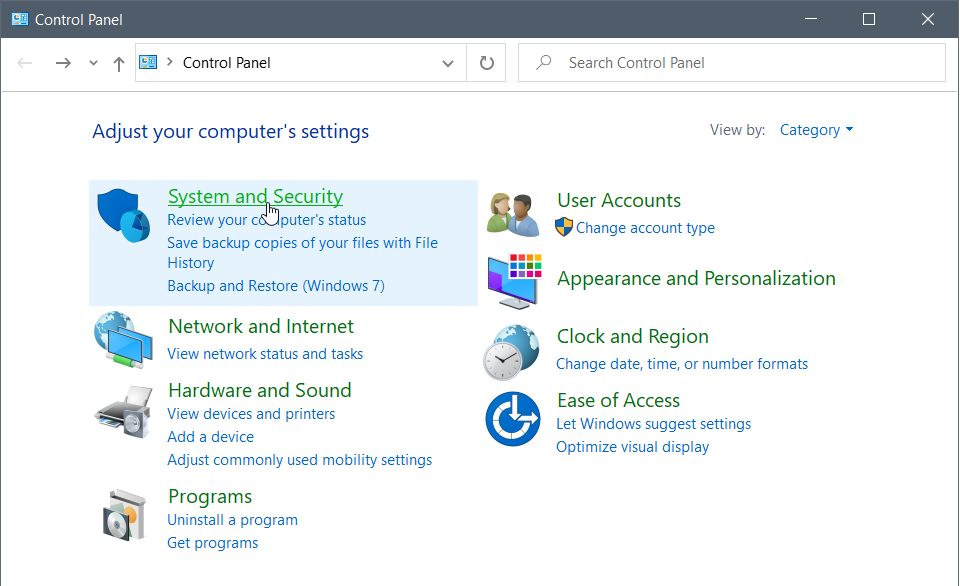
3,The System and Security dialog box will be displayed. From the Windows Defender Firewall section, select Allow an app through Windows Firewall option.
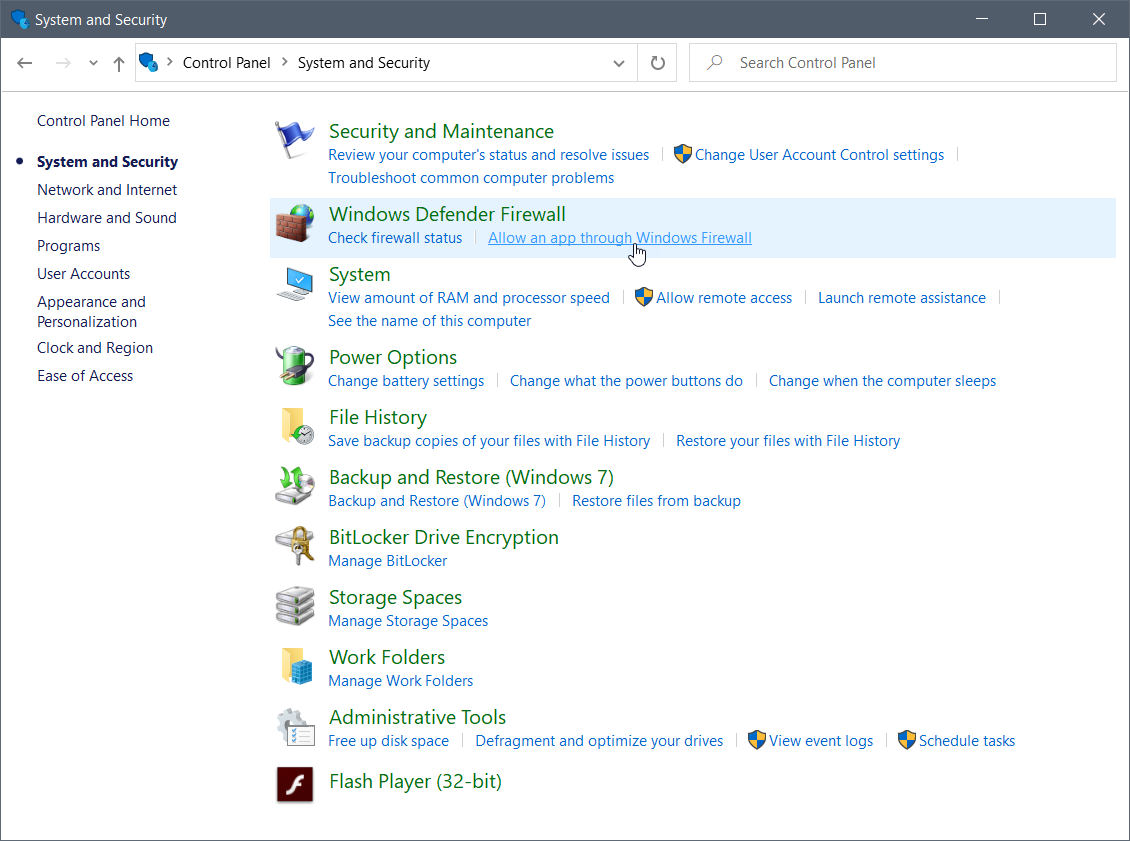
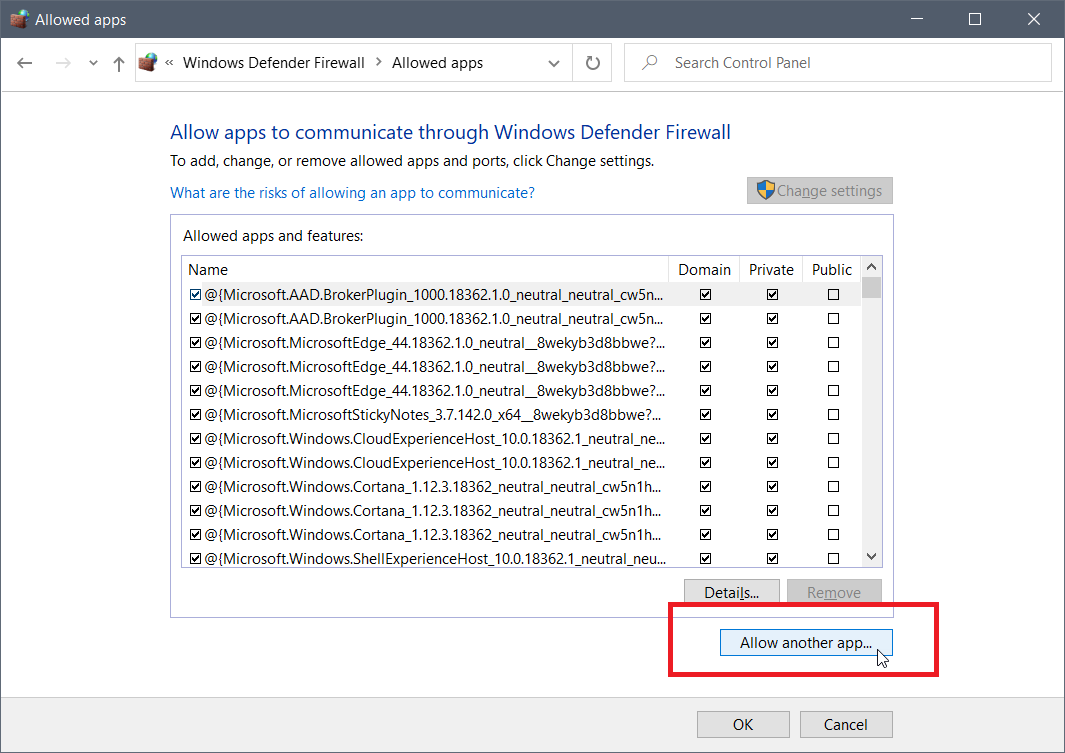
4,From the displayed Allowed apps dialog box, click the [Change settings] button.
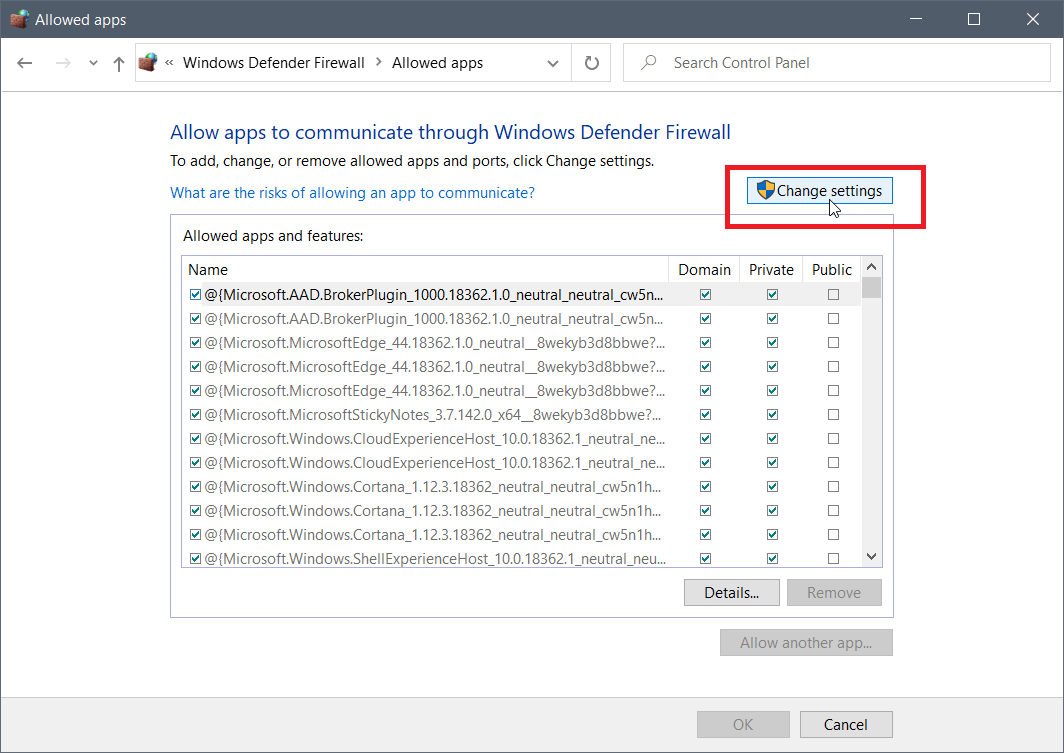
5, Then click the [Allow another app…] button to add an exception as shown below.
6,The Add an app dialog box will be displayed.
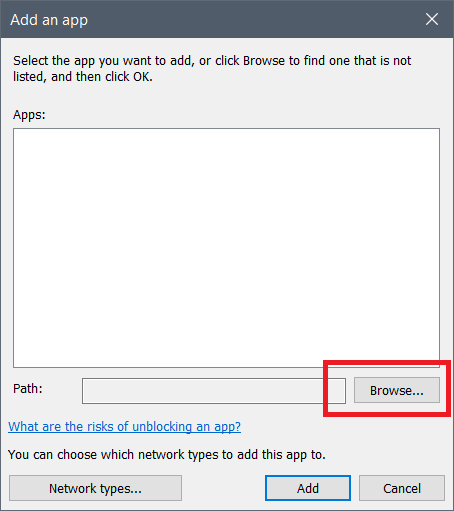
7, Now, browse the C drive of your computer for the Ecsow Dialer folder using path: C:\Program Files (x86)\Ecsow Dialer.
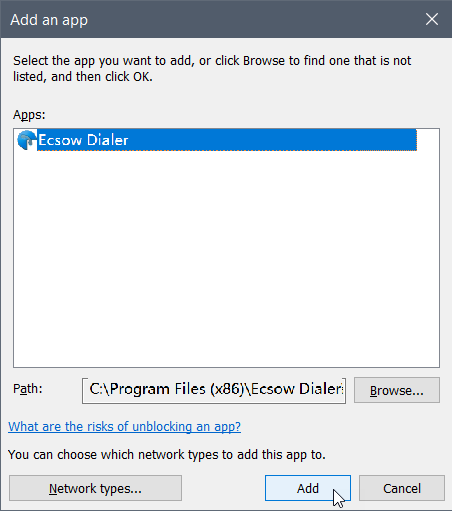
8, From the Ecsow Dialer folder, select the EcsowDialer.exe application file, and click the [Open] button.

9,Click on the [Add] button to add the path of the application.
10, Click the [OK] button to add the EcsowDialer.exe application in the Allowed apps and features list.
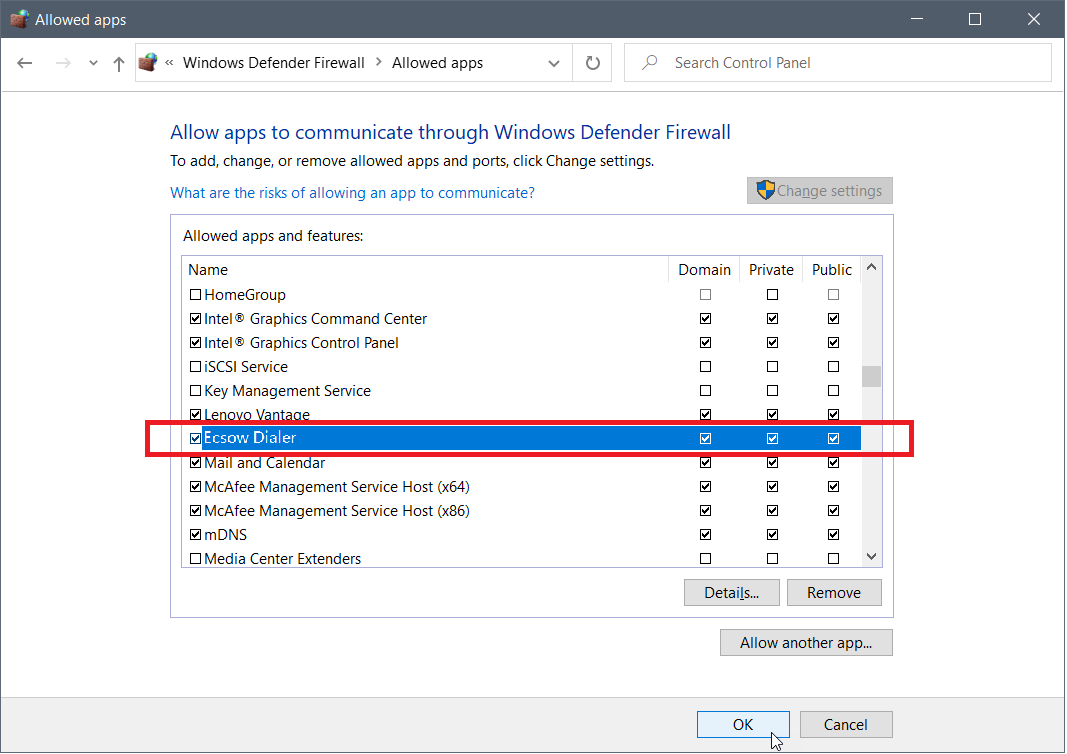
Note: Make sure the Domain, Private, and Public check boxes corresponding to the Ecsow Dialer application are checked.
Author: eva
Last update: 2025-04-28 08:28