
The below we use twilio Elastic SIP trunking to demonstrate how to configure it in Ecsow dialer.
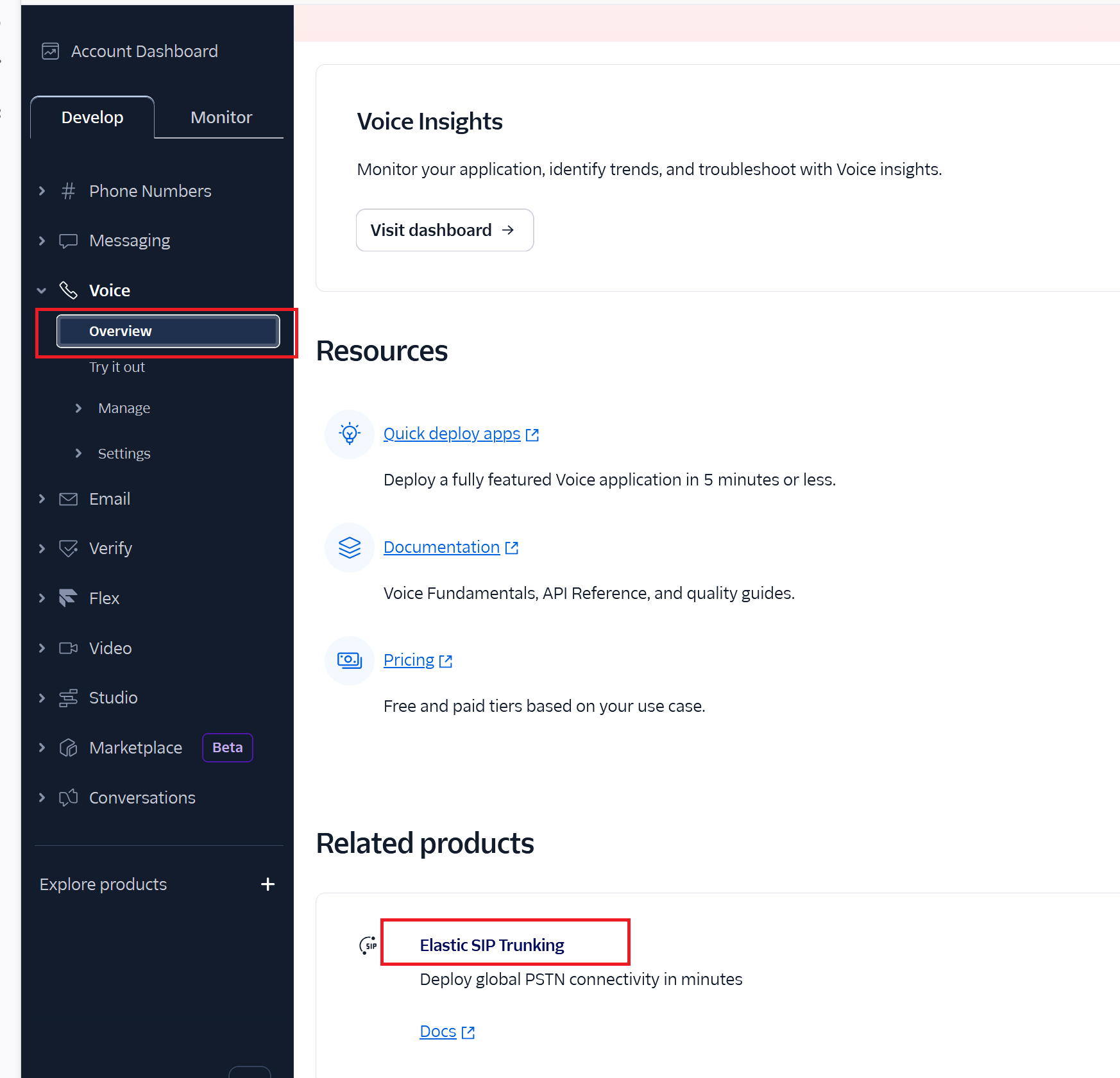
1, Click the “overview” under the “Voice” menu after you login your twilio account. Then click the “Elastic SIP Trunking” link as below.
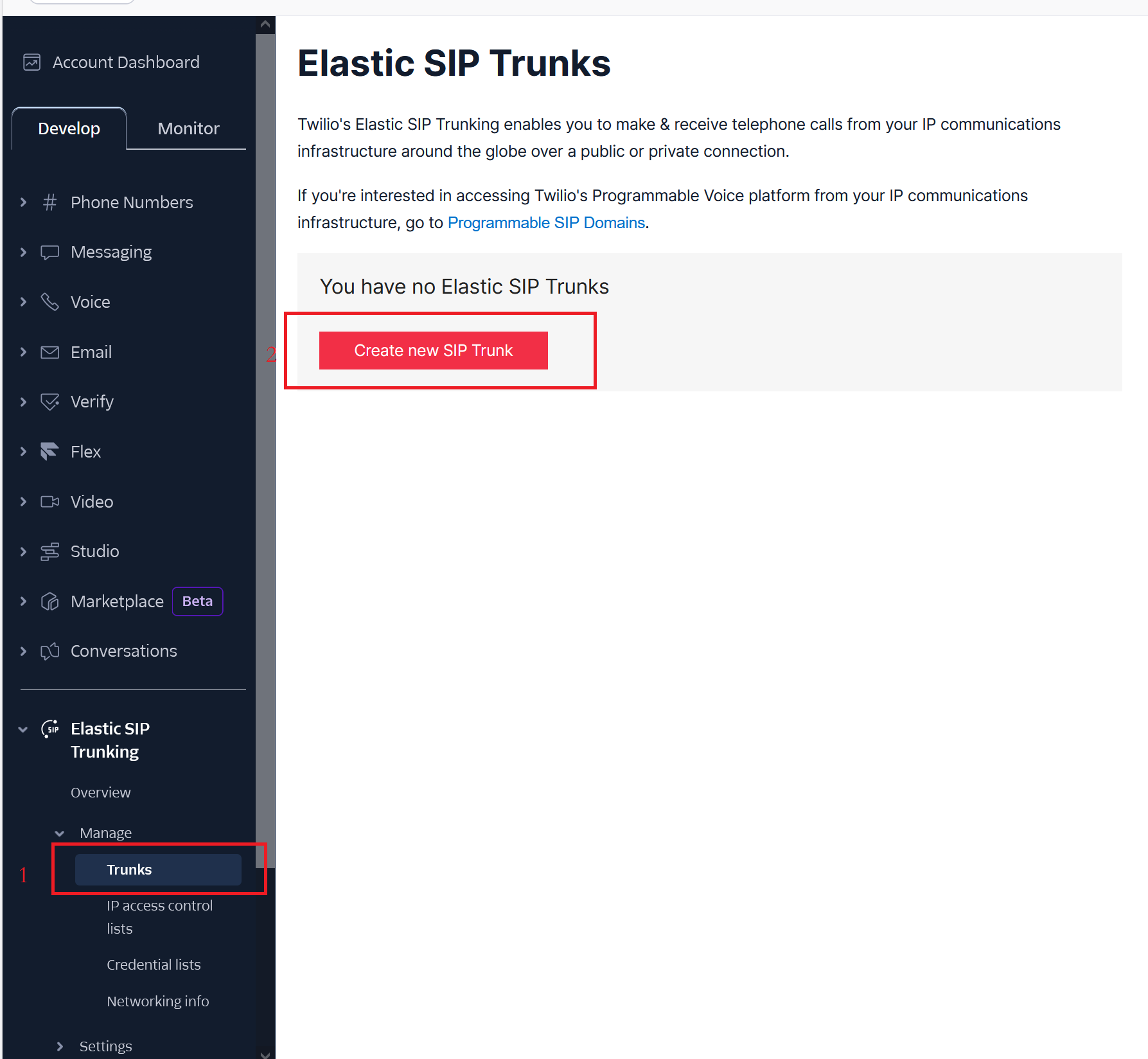
2, It will show up the “Elastic SIP Trunking” page as below, then click the “Create new SIP Trunk” button from the “Trunks” page.
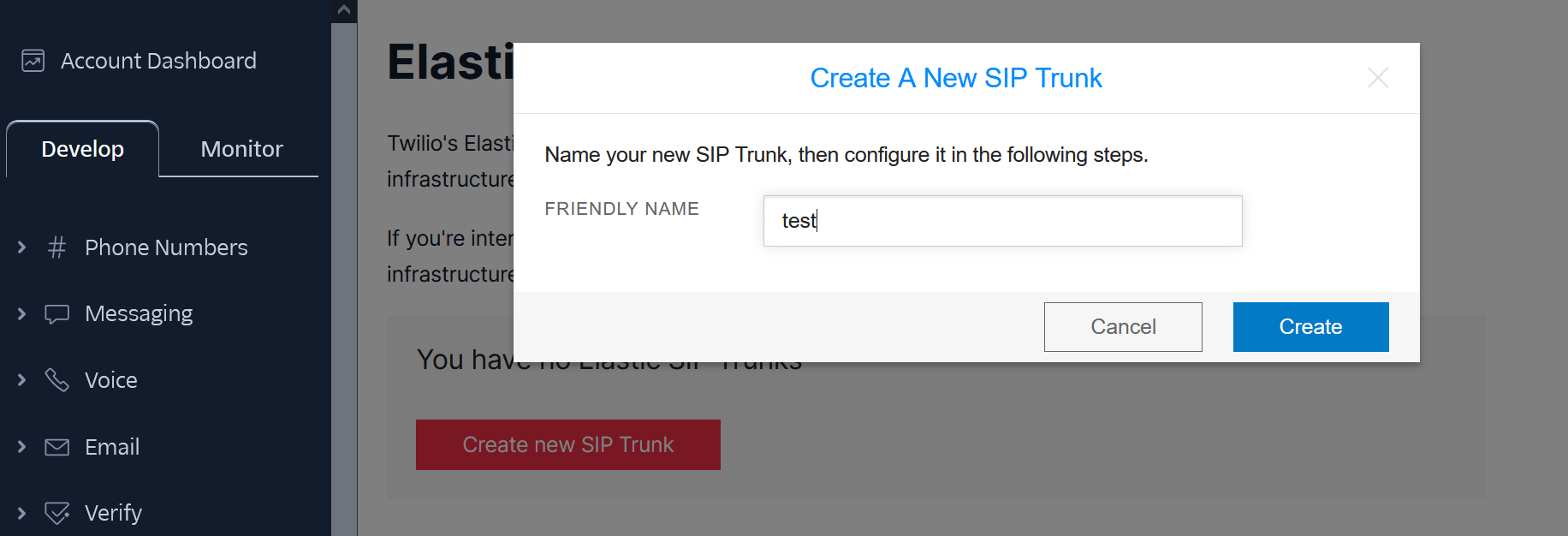
3, You need to input a name.
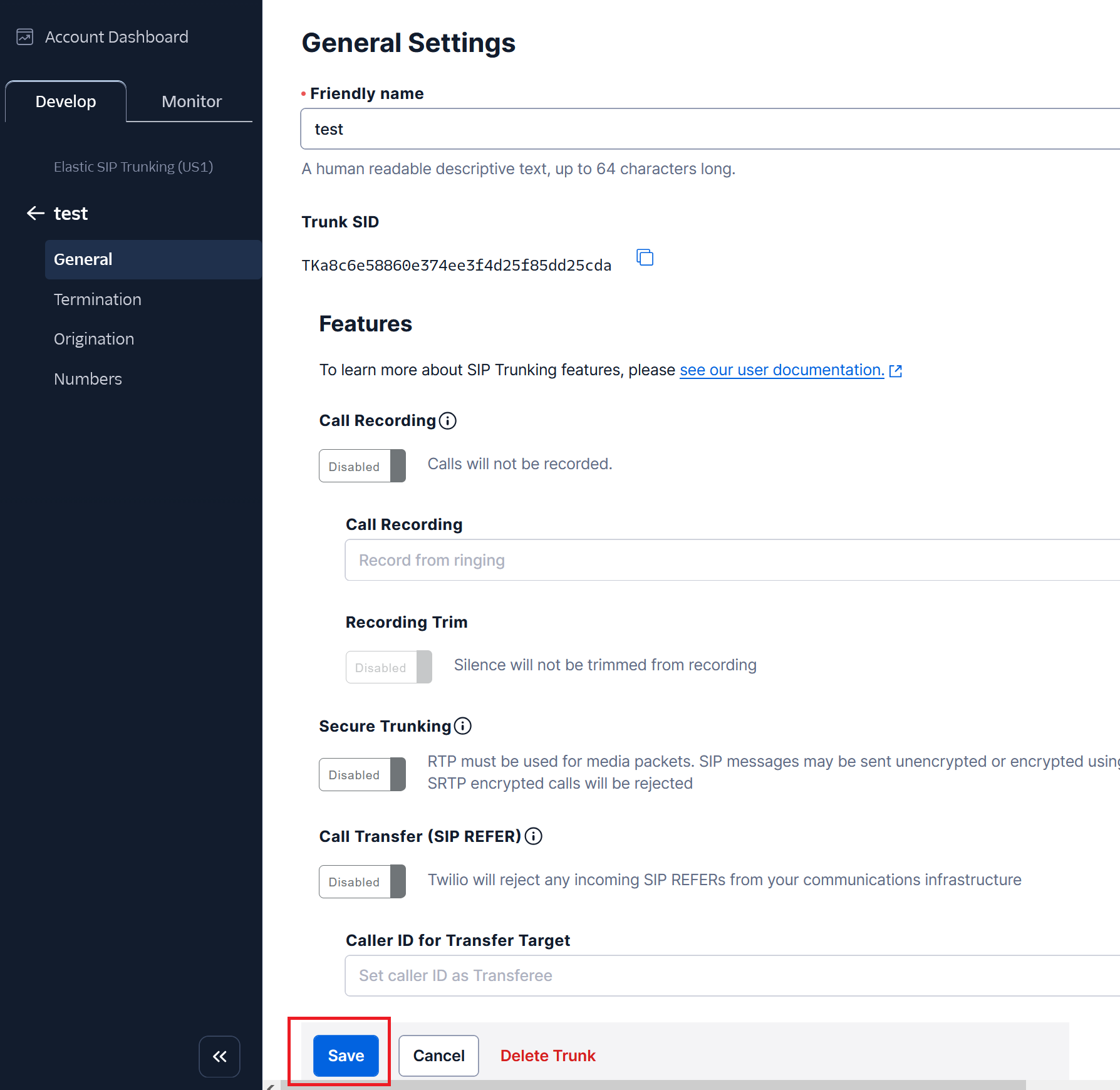
4,By default, it do not need to change anything on General page. Just click the Save button as below.
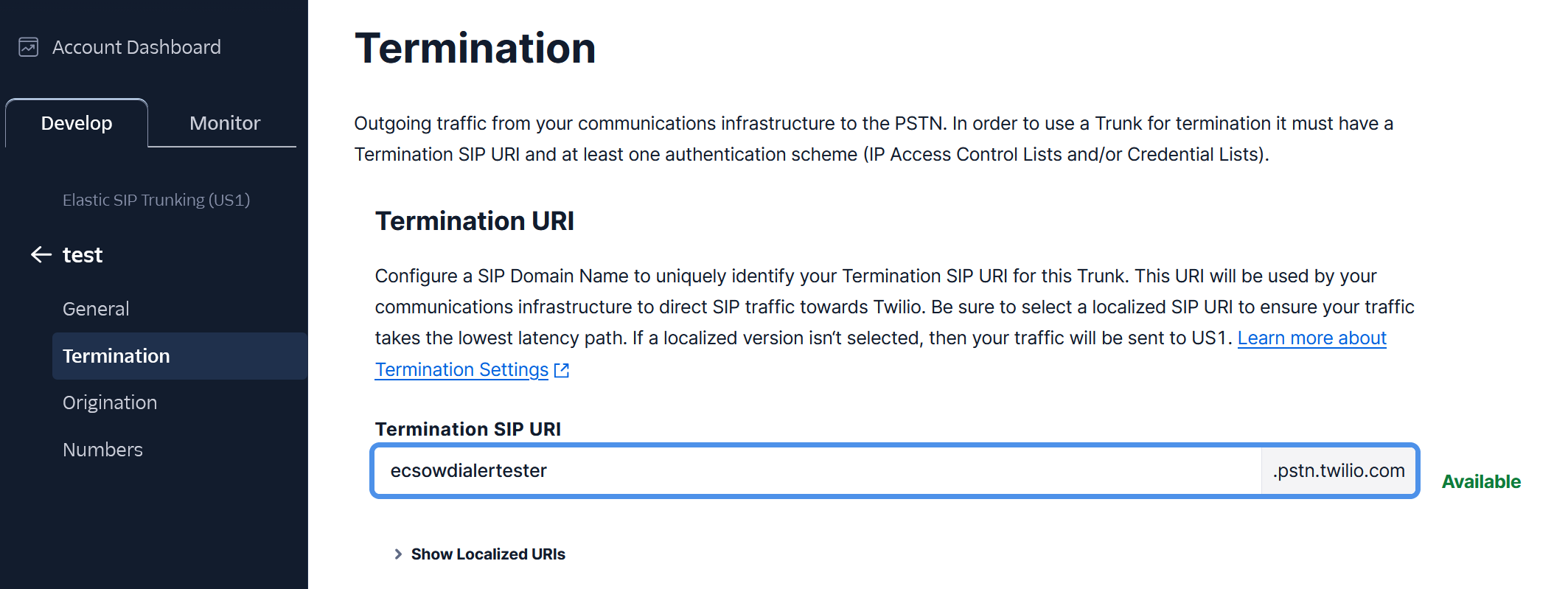
5, Click the “Termination” menu to config it. You need to input the Termination SIP URI with any name. This is the domain name for Ecsow dialer.
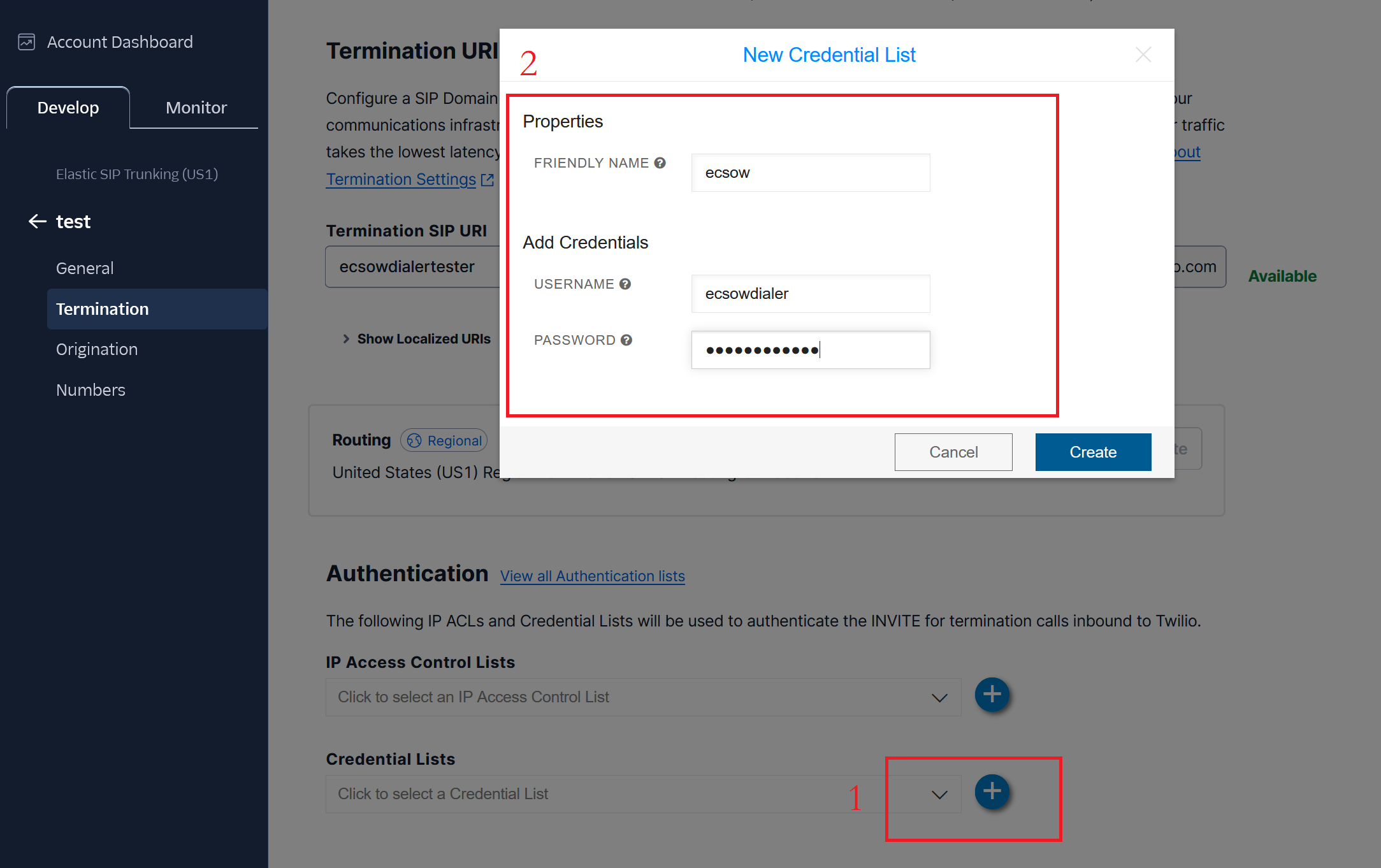
6, You need to add Authentication. Click the + icon from Credential Lists option, then input the username and password. Please remember the username and password, it will be used on Ecsow dialer later.
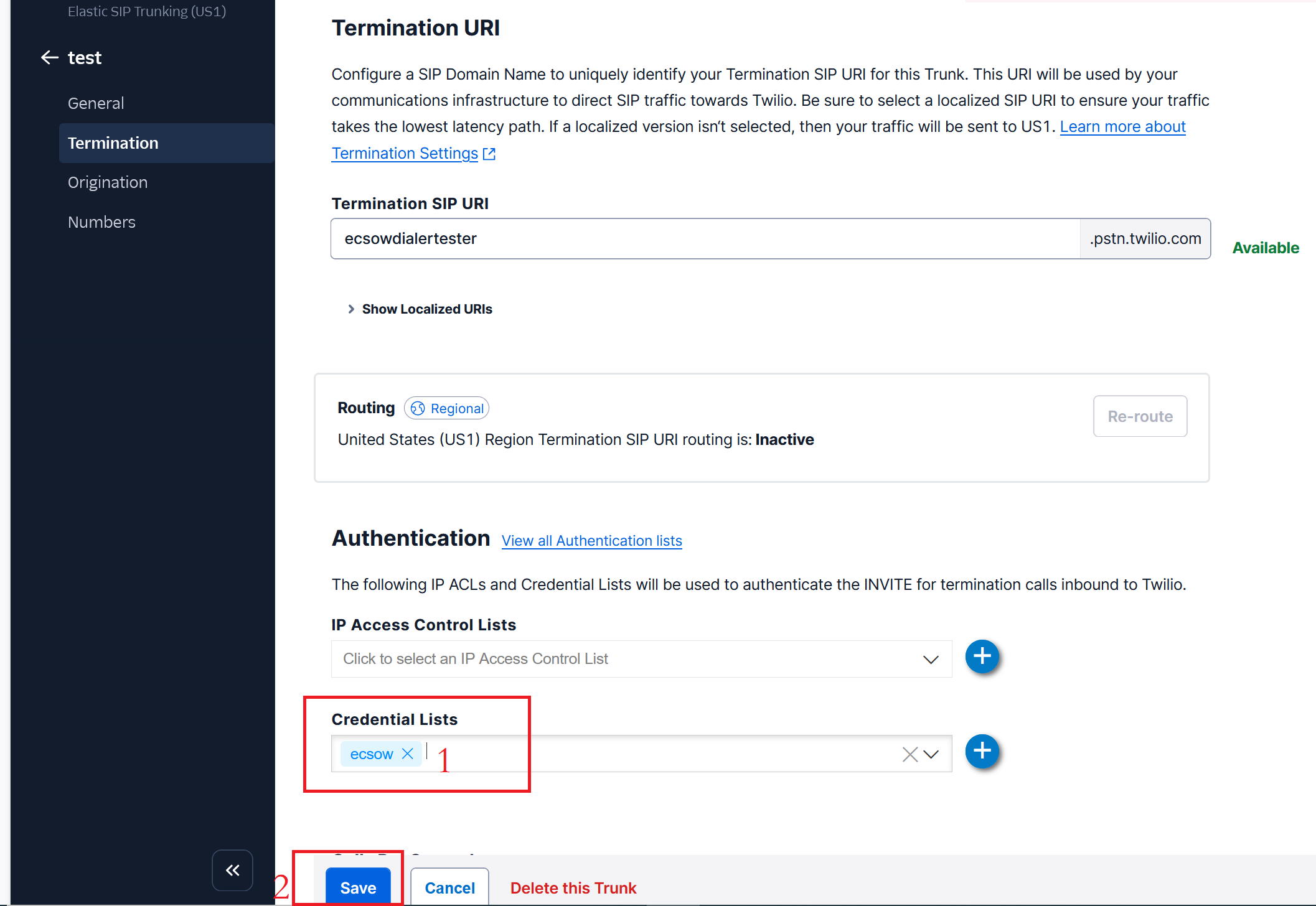
7, Select the Credential you just added as the below image step 1 shows. Then click the “Save” button to save your settings.
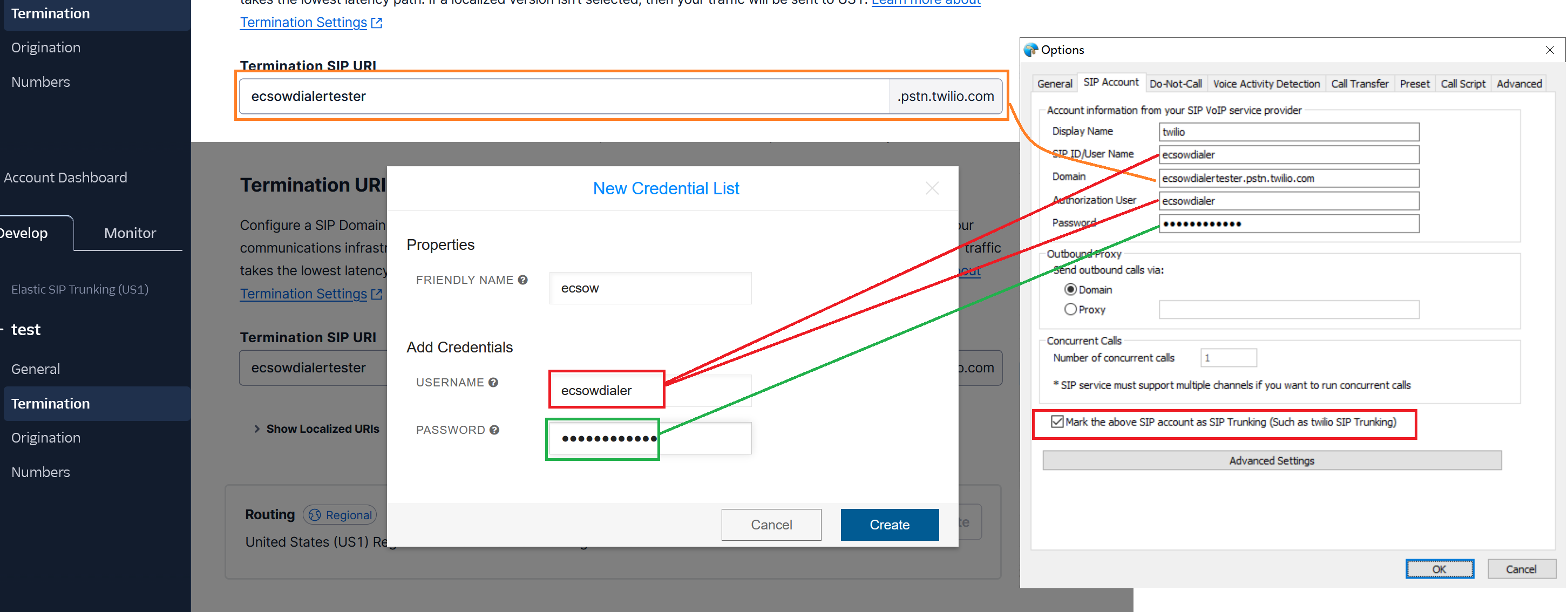
8, You can input your SIP Trunk information on Ecsow dialer as the below image shows. Please enable the “Mark the above SIP account as SIP Trunking” option.
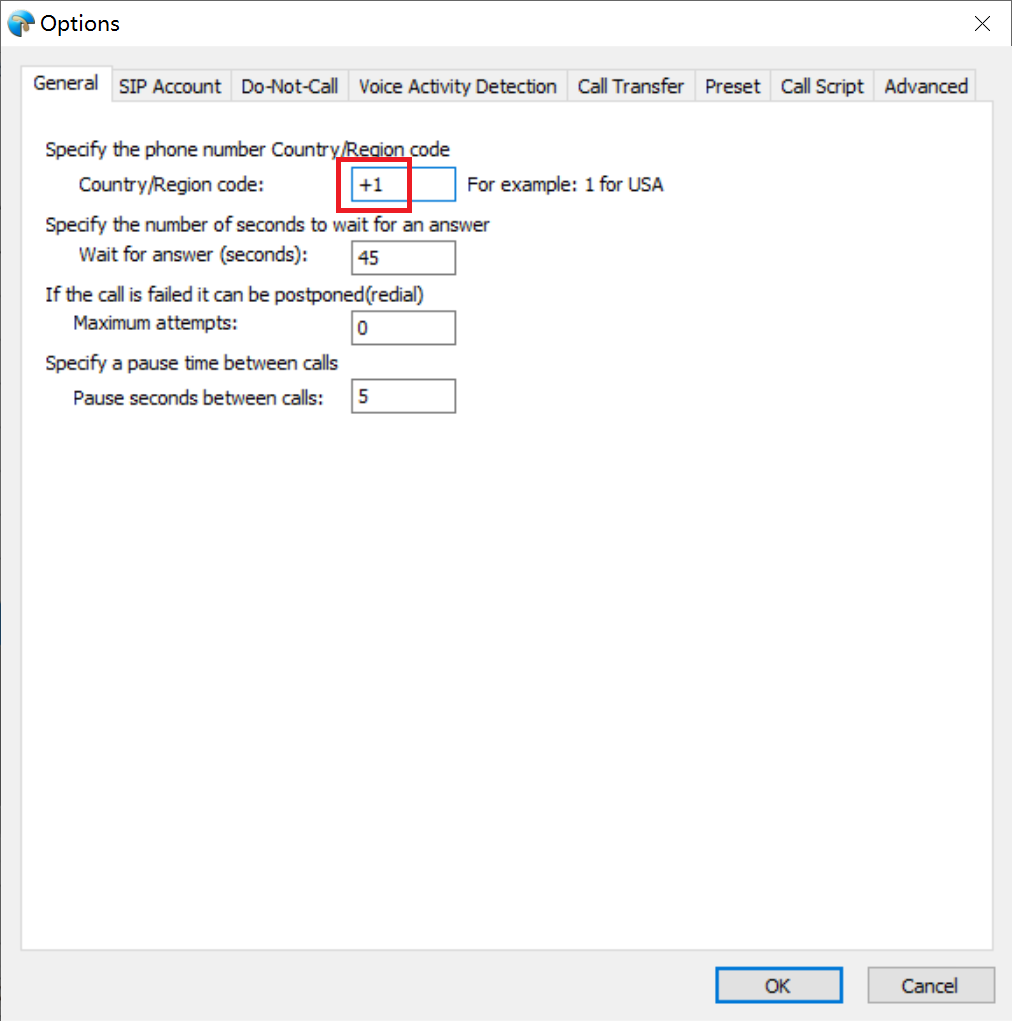
9, The twilio SIP trunk request the + symbol before the Country code. Please remember to add it.
Now, you can make a test call to twilio test number (650)489-4546) or (415)475-8378.
Tags: SIP Trunk


